




Google Review Link: Create, Share and Place It
Find your Google review link, shorten it, make a free QR code, and place link plus QR where customers actually pause, by trade. A practical setup guide.
Key Takeaway:
Find your review link in your Google Business Profile, turn the same link into a free QR code, then place link and QR by trade: counter, receipt, table talker, social bio, email signature, and the loyalty card customers already carry.
Last updated: June 2026
Your Google review link is a short web address that opens your business’s review box on a customer’s phone in one tap. You find it inside your Google Business Profile, turn the same link into a free QR code, and place link and QR where each kind of customer will actually use them. This page is the setup half: finding, shortening, making the code, and putting it in the right spots. For the scripts and the right moment to ask, see how to ask for Google reviews.
A direct link matters because the alternative is friction. “Search for us on Google and leave a review” is three or four steps, and people forget by the time they are home. One tap, or one scan, removes nearly all of that. BrightLocal’s Local Consumer Review Survey found that 83% of people who were asked went on to leave a review, so the asking works; the link is what makes acting on it easy.
In this guide:
- How to find your Google review link
- Whether to shorten it
- How to make a free QR code
- Where to place link and QR, by trade
- Letting your loyalty card surface the link for you
- Staying inside Google’s rules
How to Find Your Google Review Link
You need a verified Google Business Profile first. If you can already see your business on Google Maps with your hours and photos, you have one.
- Sign in with the Google account that owns the listing, not a personal account.
- Open “Ask for reviews” (sometimes shown as “Get more reviews”). It sits in the Business Profile dashboard, or directly on your listing in Google Search and Maps when you are signed in as the owner.
- Copy the short link. Google hands you a ready-made
g.page/r/...address that opens your review box. - Grab the QR code from the same screen while you are there. It saves you a step later.
- Test it. Open the link on your own phone. You should land straight on the review screen for your business, not your general listing.
That is about five minutes of work, done once.
If the “Ask for reviews” option is missing, it is nearly always one of two things: the profile is not verified yet, or you are signed in with the wrong account. Sort the verification, sign in as the owner, and the link appears.
Do You Need to Shorten It?
For most shops, no. The g.page/r/... link is already short. It fits on a receipt and reads cleanly in a text message.
Shorten it only if you want a branded address for print or social, something like a tidy custom link that matches your name. If you go that route, one rule applies: test the shortened version on a phone before you print anything. Shorteners sometimes break or expire, and a dead review link on fifty printed cards costs you both money and reviews.
How to Make a Free Google Review QR Code
A QR code is the format that earns its keep in a physical shop, because a customer scans it with their phone camera and skips typing.
Two routes, both free:
- Google’s built-in QR code. Generated on the same screen as your review link. Already correct, nothing to copy or paste.
- A free QR code generator. Paste your review link in, download the image as a PNG, and you own a file you can print at any size.
Whichever you pick, print it big enough to scan comfortably from arm’s length, and scan it yourself first. Confirm it opens the review box, not just your listing.
Here is how the formats line up, so you can decide what goes where.
| Format | Best for | Customer steps |
|---|---|---|
| Short link (g.page/r/…) | Email signatures, social bios, texts, post-visit messages | Tap, then review |
| QR code | Receipts, till stands, table talkers, payment screen | Scan, then review |
| Link on a digital loyalty card | Regulars who already carry your card | One tap on the card in their pocket |
Where to Place Link and QR, by Trade
A link or code only works if someone sees it when they are relaxed, has a free moment, and has just had a good experience. That rules out the doorway and the queue. Aim for the natural pause after the visit, and match the format to the moment.
| Trade | Best placement | Format |
|---|---|---|
| Cafe, bakery, takeaway | Small stand by the till, foot of the receipt | QR code |
| Restaurant, bar | Table talker on each table, or tucked in with the bill | QR code |
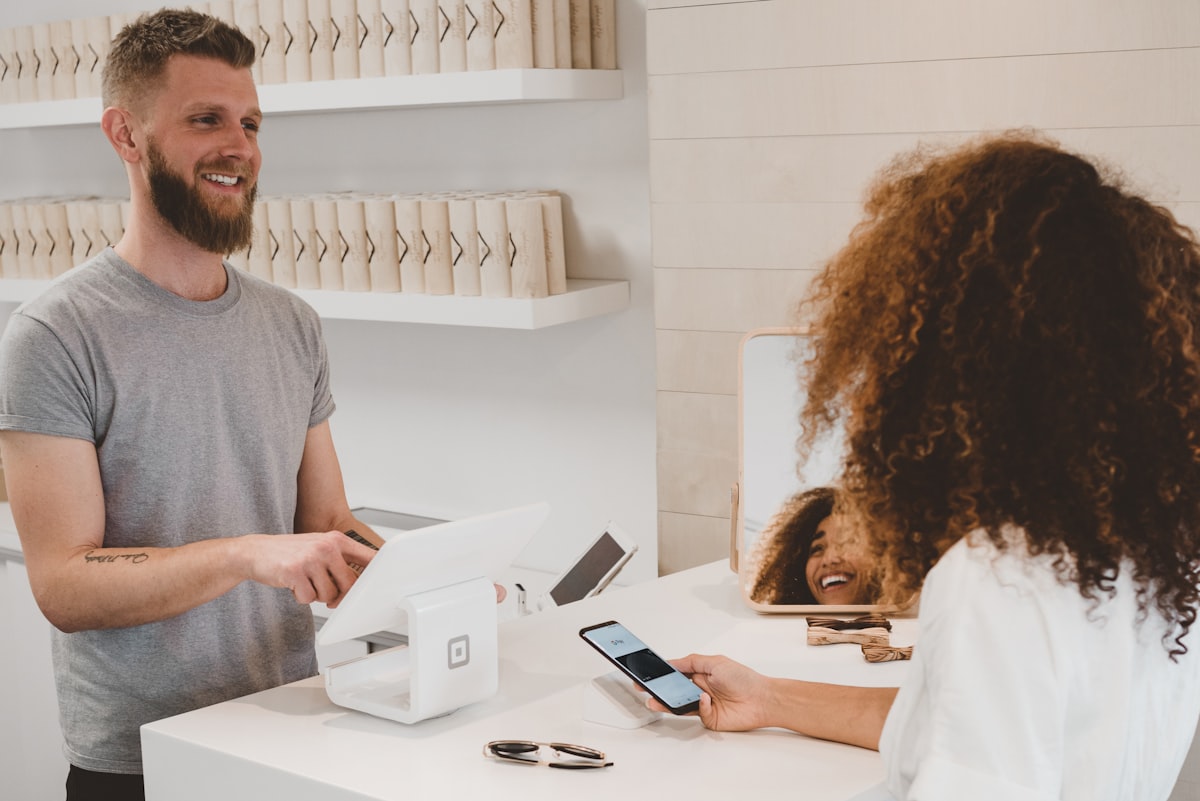
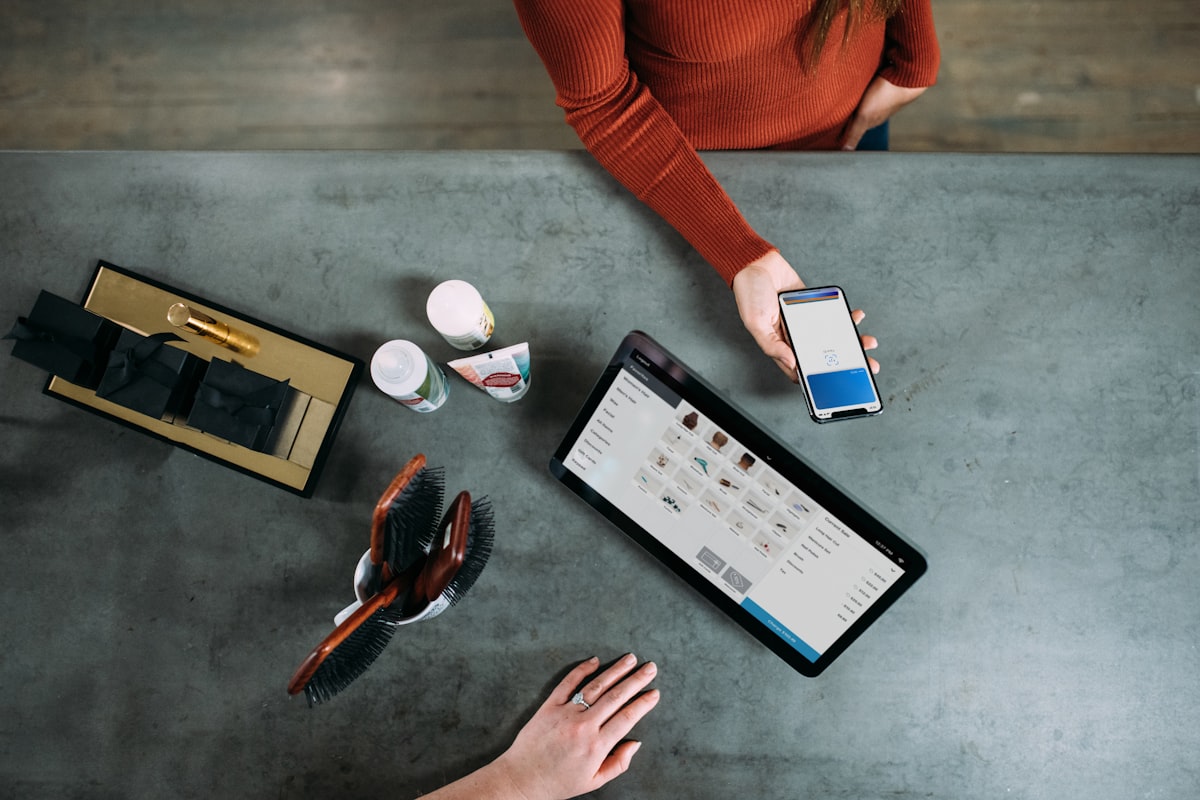
| Salon, barber, nail studio | Payment screen or a card handed over at checkout | QR code |
| Online or by phone | Email signature, booking confirmations, social bios | Short link |
| Any business with regulars | The digital loyalty card they already carry | Link, surfaced automatically |
A few things that make the difference between a code that gets scanned and one that gets ignored:
- One line of text beats a paragraph. “Enjoyed your visit? Scan to leave a Google review” is plenty.
- Put the link and the QR in more than one place. Let the customer pick the format that suits them. A QR at the till catches the walk-in; the link in your email signature catches the person who booked online.
- Do not bury it. A code nobody mentions stays at zero, the same way a hidden loyalty card never gets used. A warm word from a member of staff does more than the prettiest stand.
For the wording of that warm word, and the right moment to say it, the how to ask for Google reviews guide covers the scripts so this page does not have to.
Let Your Loyalty Card Surface the Link for You
Printing and placing a code is a one-time job, but it has a limit: a code on a wall asks the same question of everyone, at one fixed spot, and only if they happen to look down. It cannot tell a first-timer from a regular of three years, and it cannot pick the moment.
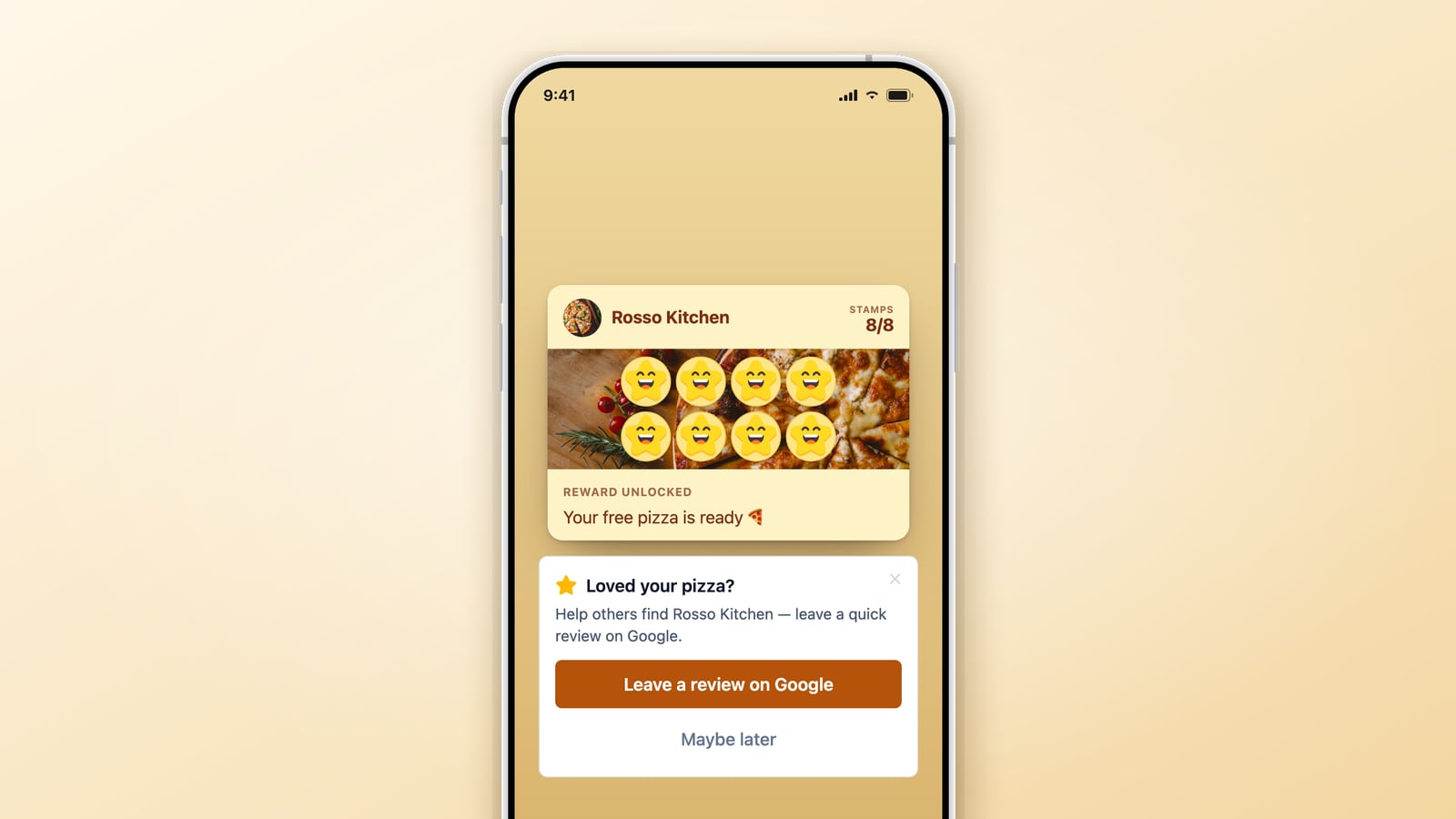
If your customers carry a digital loyalty card, you can skip the placement guesswork for your regulars. The review link can live on the card they already open to check their stamps, so there is no separate code to print and no address for them to remember.
This is what FaveCard’s Google Reviews feature does. It surfaces the review request on the loyalty card at a high-propensity moment, the redemption-moment ask: inviting the review at the exact point a customer collects their reward, when goodwill is at its peak. They have just got something free, so that is the happiest they will be all month, and the request meets them right there. One tap takes them straight to Google. No app, no phone number, no link for you to place by hand.
That timing edge is not just a hunch. Our own loyalty card completion rate study across thousands of cards shows how much a well-timed moment around a reward shifts customer behaviour, which is the same reason the reward moment is the natural time to invite a review.
Two honest caveats so this stays straight:
- The advantage is timing and convenience, not screening. Every customer who is asked goes straight to Google, with no private pre-screen and no filtering of who gets the invitation.
- It does not replace the printed code. Walk-ins who never join your loyalty programme still need the QR at the till. The card simply covers the regulars whose reviews tend to read warmest.
Staying Inside Google’s Rules
Asking is encouraged. Google’s own guidance tells businesses, in its words, that “to leave reviews, you can ask customers to visit a Google link or scan a QR code.” So sharing your link is the recommended route, not a grey area. Three lines you must not cross, taken straight from Google’s policies:
- Never offer anything in exchange. Google calls offering “incentives, like free or discounted goods or services, in exchange for customers to post reviews” fake and misleading content, and strictly prohibits it. The reward in a loyalty programme is for visiting, never for reviewing.
- Never screen who you ask. Google’s content policy bars businesses from choosing to “discourage or prohibit negative reviews, or selectively solicit positive reviews.” Sending only happy customers to Google, or steering unhappy ones somewhere private instead, is review gating, and it can get your reviews removed. Ask everyone the same way.
- Never pressure or require it in person. The same policy says businesses should not require customers to “leave ratings or write reviews while on the premises.” The in-person mention is an invitation, never a condition, and never tied to a discount or a free coffee.
If you also want a private place to hear concerns, that is a separate job. FaveCard’s Surveys feature collects honest feedback privately on the same loyalty card, so you can put small things right early. It sits alongside the Google ask; it does not replace it and it does not decide who gets asked. Everyone still goes to Google. For how public reviews and private feedback fit together, see the customer feedback and reviews guide.
Frequently Asked Questions
How do I find my Google review link?
Sign in to your Google Business Profile with the owner account, open “Ask for reviews” or “Get more reviews”, and copy the short link Google gives you. It usually looks like g.page/r/ followed by a string of characters and opens your review box directly. If you manage the profile from Google Search or Maps while signed in as the owner, the same option shows up there. The link only appears once your profile is verified.
How do I make a Google review QR code for free?
Two ways. Google can generate a QR code on the same screen as your review link, which is the simplest. Or paste your review link into any free QR code generator and download the image as a PNG. Both cost nothing. Whichever you use, scan it with your own phone before you print copies and confirm it opens the review box, not just your general listing.
Do I need to shorten my Google review link?
Usually no. The g.page/r/ link Google gives you is already short enough for a receipt or a text. Only shorten it if you want a tidy branded address for print or social. If you do, test the shortened version on a phone first, because shorteners can break or expire, and a dead review link on a printed card is worse than none.
Where should I place my Google review link and QR code?
Match the format to the spot. A QR code suits physical places customers pause: the counter, the receipt, a table talker, the payment screen. The plain link suits anything tappable: your social bios, email signature, and post-visit messages. The strongest spot of all is a digital loyalty card, because it reaches regulars at the moment they collect a reward.
Is it against Google’s rules to ask customers for reviews with a link or QR code?
No. Google’s own guidance tells businesses to ask customers to visit a link or scan a QR code, and shows you how to create one. The rules: never offer payment, discounts, or free goods in exchange for a review, never screen who you ask or steer unhappy customers away, and never require or pressure someone to review while on your premises. The in-person mention should be a relaxed invitation, never a condition.
Do customers need an app to use the link or QR code?
No. Tapping the link or scanning the code opens the review page in the phone’s browser, with nothing to download. If you run a digital loyalty card, the review request can appear on the card customers already open to check their stamps, so it reaches your regulars with no separate QR code to print or link to remember.
Get the Setup Done
Find your link in your Business Profile, make the free QR code, and place both where each kind of customer pauses: the QR at the till and on receipts, the link in your email signature and social bios. Then let your loyalty card carry the link for your regulars, so the busiest part of asking happens without you lifting a finger.
FaveCard’s loyalty card lives on your customers’ phones, and the Google Reviews feature (a paid feature, see pricing) surfaces the review link at the redemption moment, one tap, straight to Google. No app, no phone numbers, no gating.
Start free with premium tools until the first 30 customers are on the card and turn happy regulars into visible proof.
Related guides
Frequently Asked Questions
How do I find my Google review link?
Sign in to your Google Business Profile with the owner account, open 'Ask for reviews' or 'Get more reviews', and copy the short link Google gives you. It usually looks like g.page/r/ followed by a string of characters and opens your review box directly. If you manage the profile from Google Search or Maps while signed in as the owner, the same option shows up there. The link only appears once your profile is verified.
How do I make a Google review QR code for free?
Two ways. Google can generate a QR code on the same screen as your review link, which is the simplest. Or paste your review link into any free QR code generator and download the image as a PNG. Both cost nothing. Whichever you use, scan it with your own phone before you print copies and confirm it opens the review box, not just your general listing.
Do I need to shorten my Google review link?
Usually no. The g.page/r/ link Google gives you is already short enough for a receipt or a text. Only shorten it if you want a tidy branded address for print or social. If you do, test the shortened version on a phone first, because shorteners can break or expire, and a dead review link on a printed card is worse than none.
Where should I place my Google review link and QR code?
Match the format to the spot. A QR code suits physical places customers pause: the counter, the receipt, a table talker, the payment screen. The plain link suits anything tappable: your social bios, email signature, and post-visit messages. The strongest spot of all is a digital loyalty card, because it reaches regulars at the moment they collect a reward.
Is it against Google's rules to ask customers for reviews with a link or QR code?
No. Google's own guidance tells businesses to ask customers to visit a link or scan a QR code, and shows you how to create one. The rules: never offer payment, discounts, or free goods in exchange for a review, never screen who you ask or steer unhappy customers away, and never require or pressure someone to review while on your premises. The in-person mention should be a relaxed invitation, never a condition.
Do customers need an app to use the link or QR code?
No. Tapping the link or scanning the code opens the review page in the phone's browser, with nothing to download. If you run a digital loyalty card, the review request can appear on the card customers already open to check their stamps, so it reaches your regulars with no separate QR code to print or link to remember.