
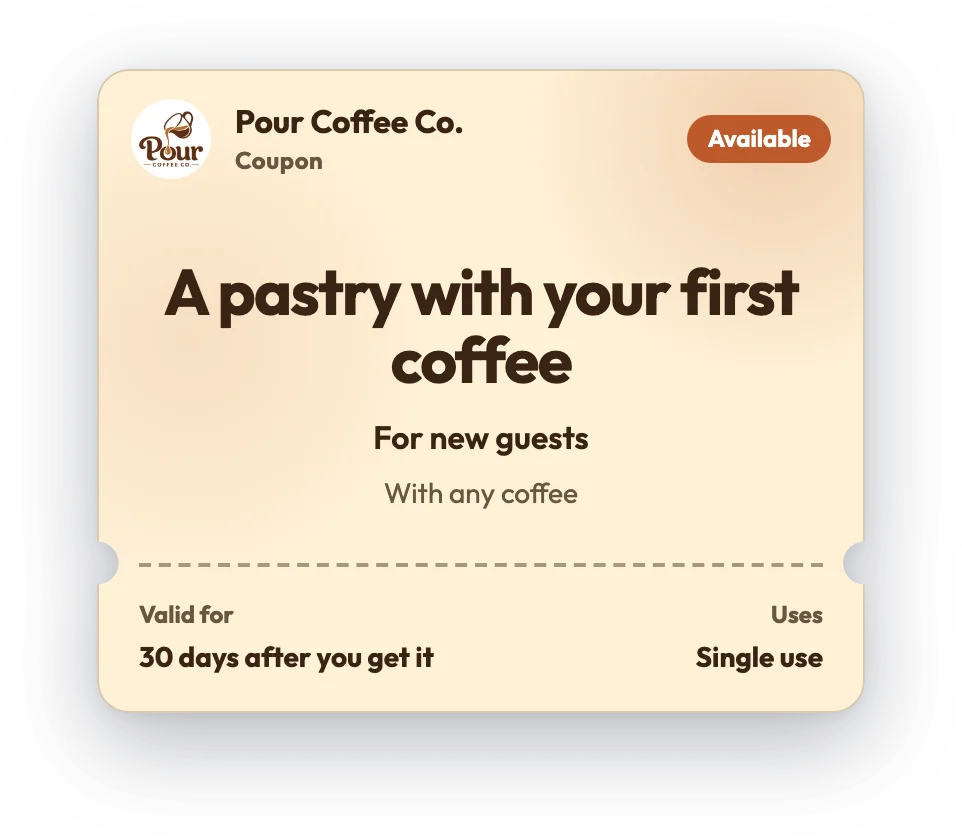





Apple Wallet coupons for your local business
An Apple Wallet or Google Wallet coupon sits on your customer's phone right alongside their boarding passes and tickets, with nothing for them to install. Share your offer by link or QR code, then scan it at the counter with the FaveCard app on your own phone.
Designing and printing in the maker is free with no account; giving Wallet coupons needs a FaveCard account with a 30-day trial (no credit card needed), then the Business plan — see pricing.
What is an Apple Wallet coupon?
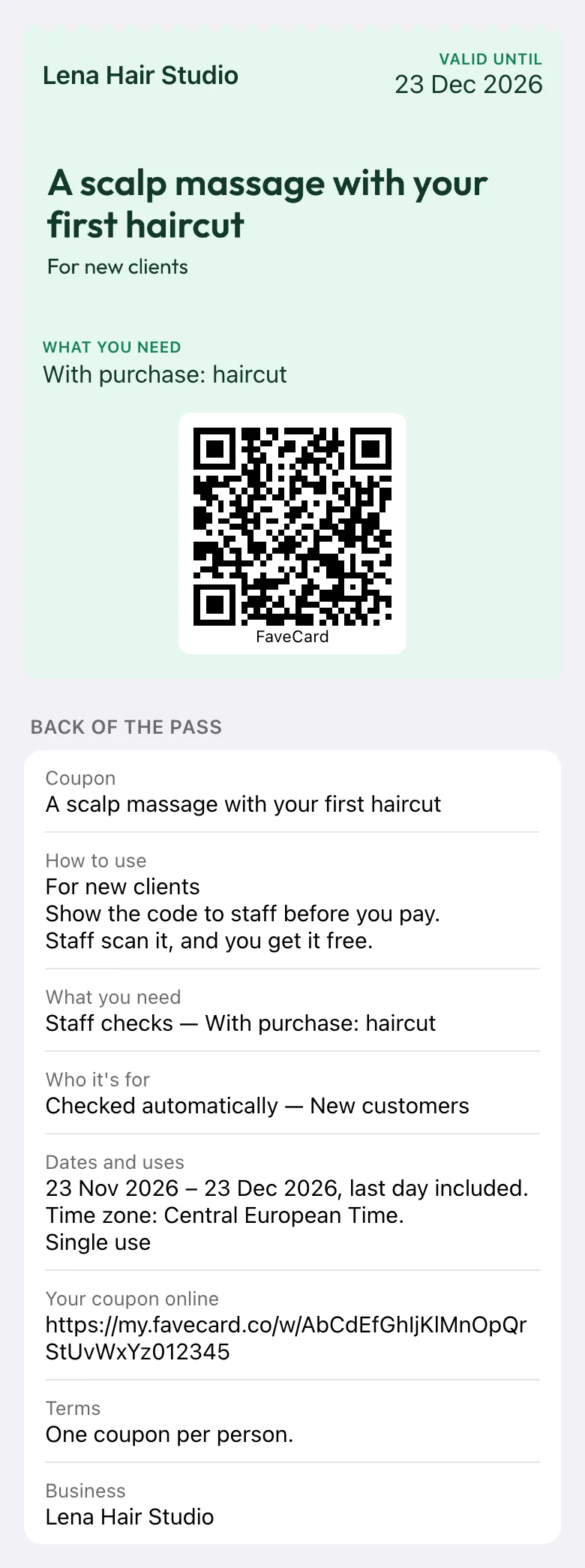
An Apple Wallet coupon is a digital offer saved inside Apple Wallet on an iPhone, the built-in app people already use for boarding passes and tickets. On Android phones, the exact same coupon saves to Google Wallet, so customers install nothing.
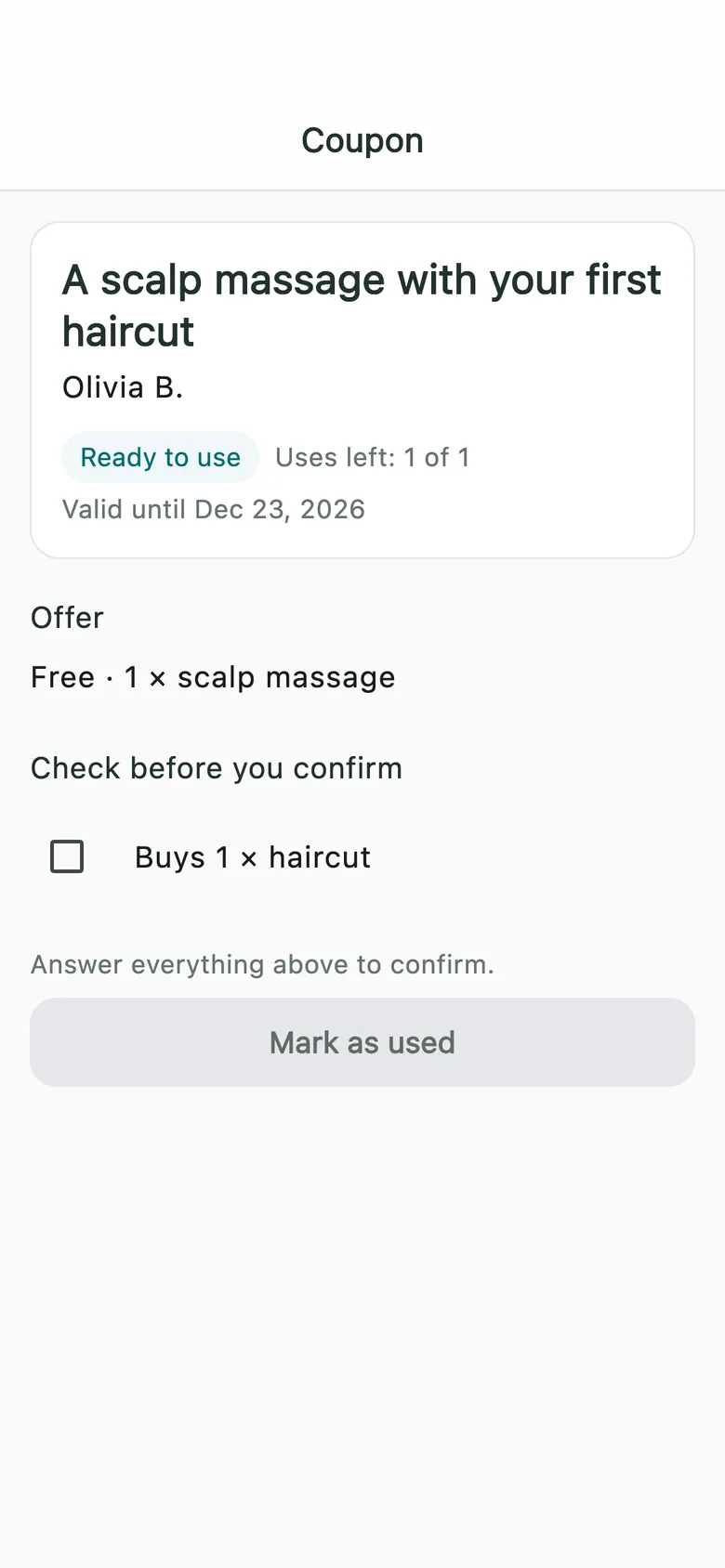
Unlike a paper slip that gets left in another jacket, a Wallet coupon stays on the phone your customer carries every day. Each customer can claim the offer once, and a second claim by the same person is refused. You set the last day up to 30 days ahead, counting today, and staff check the coupon at the counter using the FaveCard app on their own phone.
How customers save your coupon
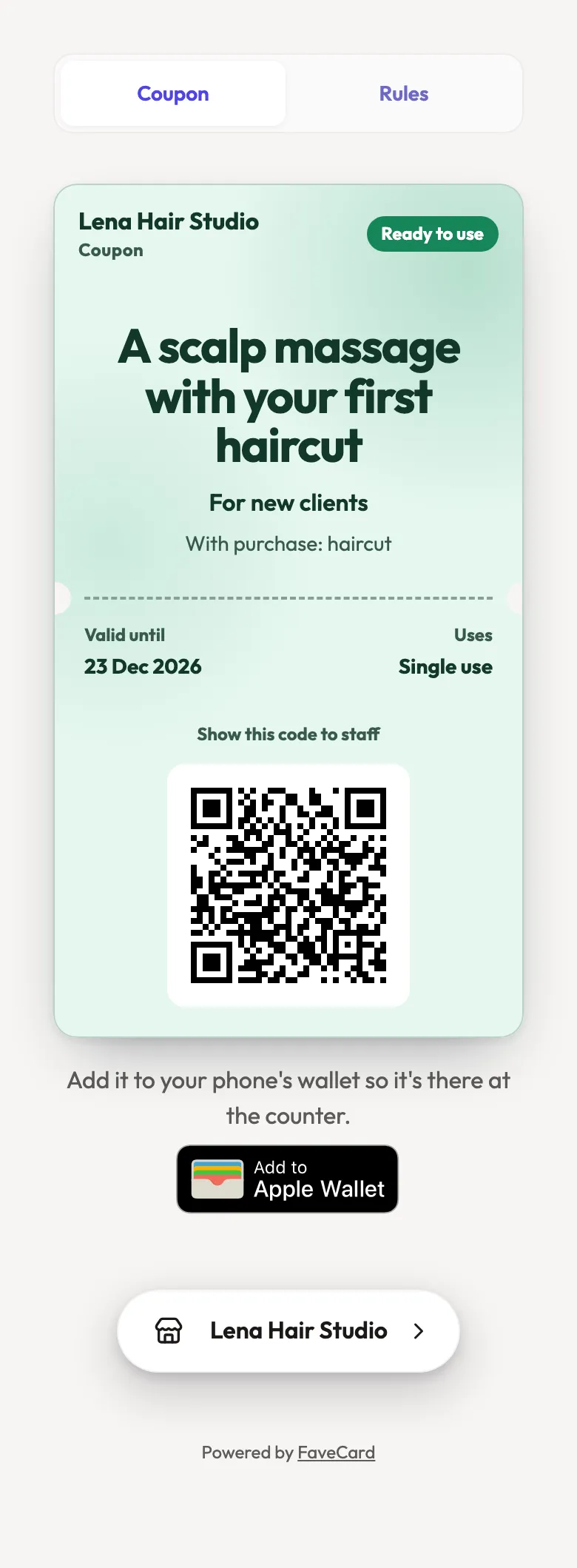
Customers save a FaveCard Wallet coupon in a few quick taps by opening your link or scanning your QR code, with no app to install. After confirming their email, they add the coupon to Apple Wallet or Google Wallet, or keep the link open in their browser.
How to make one for your business
Making a Wallet coupon with FaveCard starts in the free coupon maker, where you pick an idea for your trade, set your words and a last day up to 30 days ahead, and create a FaveCard account to share it by link or QR code.
- Pick an idea for your trade in the free coupon maker and adjust the words to match your offer.
- Set the last day customers can use the coupon, up to 30 days ahead counting today.
- Create a FaveCard account, which includes a 30-day trial with no credit card needed, then continues on the Business plan (see pricing).
- Share the coupon as a link in WhatsApp or your Instagram bio and story, or display the QR code in your window, at the till, or on a table, then scan coupons at the counter with the FaveCard app.
Google Wallet and Android
Google Wallet supports FaveCard coupons on Android phones in the exact same way Apple Wallet does on iPhone, using the same link or QR code. Android customers install nothing: they save the coupon to Google Wallet or keep the link open in their browser.
You do not need to build separate offers for iPhone and Android visitors. When any customer comes in, your team scans their coupon with the FaveCard app on their own phone, whether it sits in Apple Wallet, Google Wallet, or a browser tab.
Wallet coupon, paper coupon or an app?
Wallet coupons, paper coupons, and a shop's own app each suit a different kind of local business. If you only want paper coupons to hand out at the counter, the free printable coupon maker is enough on its own.
| Wallet coupon | Paper coupon | Coupon in a shop's own app | |
|---|---|---|---|
| What the customer needs | Apple Wallet (iPhone), Google Wallet (Android), or a phone browser — nothing to install. | The printed slip of paper in their pocket or bag. | Downloading and setting up the business's own app. |
| How it is checked at the counter | Staff scan the coupon with the FaveCard app on their own phone. | Staff look at the slip and collect it at the till. | Staff check the customer's screen or scan inside the shop's system. |
| Can it be used twice | No — one coupon per customer, and a second claim by the same person is refused. | One slip is collected once, though copies or extra handouts are harder to control. | Usually limited by the customer's account inside that app. |
| Cost to make | Needs a FaveCard account: 30-day trial (no credit card needed), then the Business plan. | Free to design and print in the coupon maker with no account, plus your own paper and ink. | Paying to build or rent and maintain a dedicated app for your shop. |
When paper is enough: if you simply want to print a stack of coupons to hand out at the till or drop through nearby doors, use the free coupon maker and print them with no account needed.
Ideas by trade
Local businesses use Wallet coupons for simple offers such as a free item with a purchase, money off on a quiet day, or a gift for bringing a friend. Every offer runs for up to 30 days, counting today, and allows one coupon per customer.
- CaféFree pastry with any morning coffee before 11 a.m.
- Hair salon20% off a wash and cut on Tuesday or Wednesday mornings.
- Car washBring a friend for a full wash and their express wash is free.
- BakeryFree sourdough roll with any loaf bought before noon.
FAQ
How do I add a coupon to Apple Wallet?
To add a FaveCard coupon to Apple Wallet, tap the link the shop sent you or scan their QR code with your iPhone camera. Type your email address, enter the short code we email you, and add your first name. From there, tap to add the coupon to Apple Wallet, or keep the link open in your browser — you do not need to install any app.
Can I make my own Apple Wallet coupon?
Yes, any local business owner can make an Apple Wallet coupon in FaveCard's coupon maker. Pick an idea for your trade, adjust the words and the last day (up to 30 days ahead, counting today), and create a FaveCard account to share it by link or QR code. If you only want paper coupons to hand out, you can design and print them in the maker with no account.
Does Google Wallet support coupons?
Yes, Google Wallet supports FaveCard coupons on Android phones using the exact same link or QR code you share with iPhone customers. Android visitors tap the link or scan the QR code, confirm their email and first name, and save the coupon to Google Wallet or keep it open in their browser. At the counter, your staff scan Android and iPhone coupons the same way in the FaveCard app.
Do my customers need an app?
No, your customers install nothing to save or use your coupon. Coupons go straight into Apple Wallet on iPhone or Google Wallet on Android — the apps phones already have for boarding passes and tickets — or stay open in the phone's browser. Only your staff use the FaveCard app on their own phone to scan coupons at the counter.
Can a customer use the coupon twice?
No, FaveCard allows one coupon per customer, and a second claim by the same person is refused. When a customer visits, staff scan the coupon with the FaveCard app on their own phone at the counter. That keeps your offer fair without tracking names on paper.
How much does it cost?
Designing and printing a coupon in the coupon maker is free with no account. Giving coupons that customers save to Apple Wallet or Google Wallet by link or QR code needs a FaveCard account, which comes with a 30-day trial and no credit card needed. After the 30-day trial, Wallet coupons are part of the Business plan — see pricing for current prices.
How long can a coupon last?
A FaveCard coupon can last up to 30 days ahead, counting today. You choose the exact last day when you set up your offer in the coupon maker, whether you want a short weekend push or a full 30-day run. Keeping the last day within 30 days gives customers a clear reason to come in soon.
Ready to put your coupon on your customers' phones?
Open the coupon maker to pick an idea for your trade, print paper copies free with no account, or share to Apple Wallet and Google Wallet on a 30-day trial with no credit card needed.