




Lena Hair Studio
Coupon
A scalp massage with your first haircut
For new clients
Valid until
Dec 28, 2026
Uses
Single use

Product
Loyalty cardsDigital stamp cards, no app neededCouponsWin customers with discounts and free itemsCampaignsOffers sent to their lock screenGoogle reviewsAsk at the happiest momentBusiness pageMenu, events and reviews on one QR codeFeatures
Customer messagesBirthday automationSurveysKiosk modeKnow your regularsQR code signs & posts All featuresUse this coupon maker to create a coupon for your local business: free to make and print copies to hand out. Or share a phone-ready offer customers keep in Apple or Google Wallet.
A digital coupon kept in Apple Wallet or Google Wallet, where phones store passes and tickets, ready to show in person with no app to install.
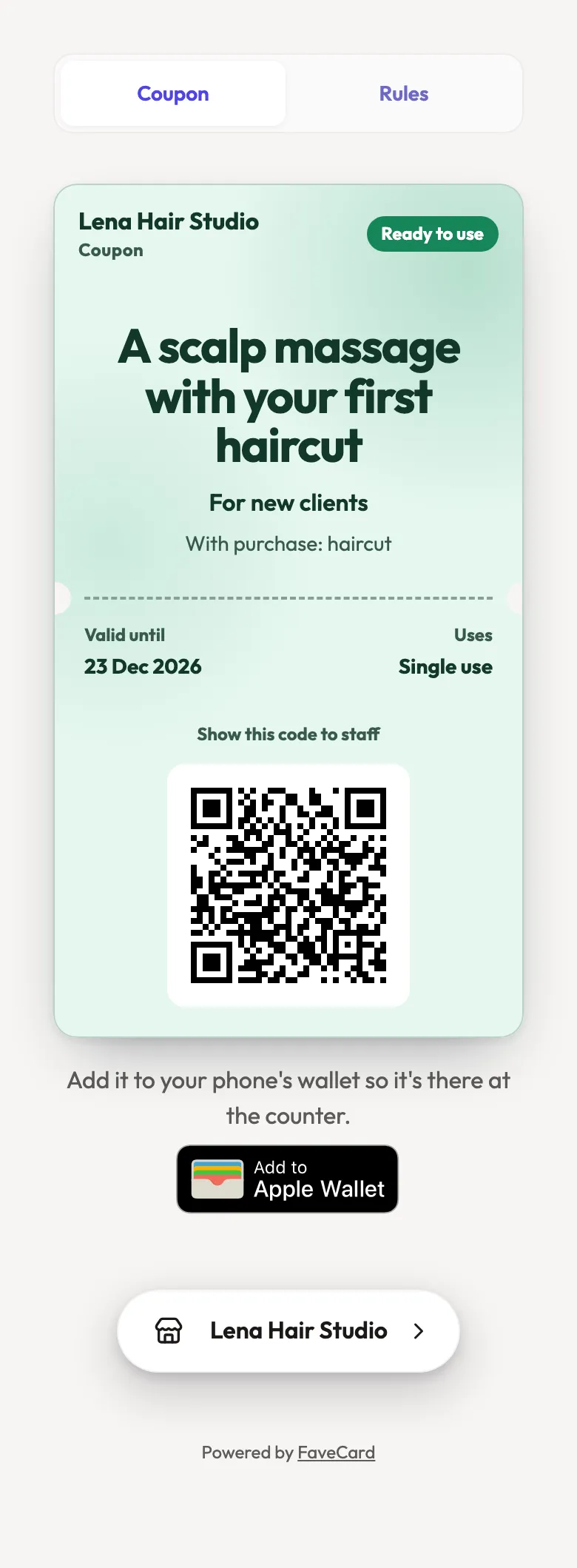
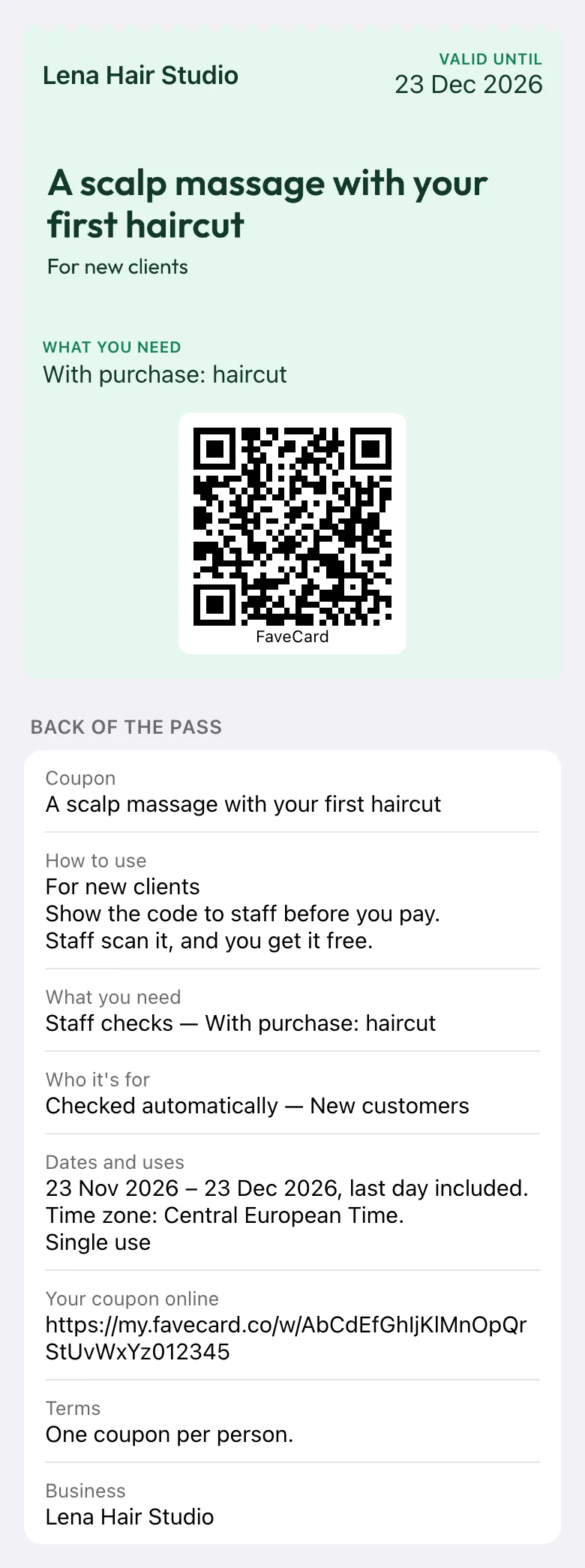
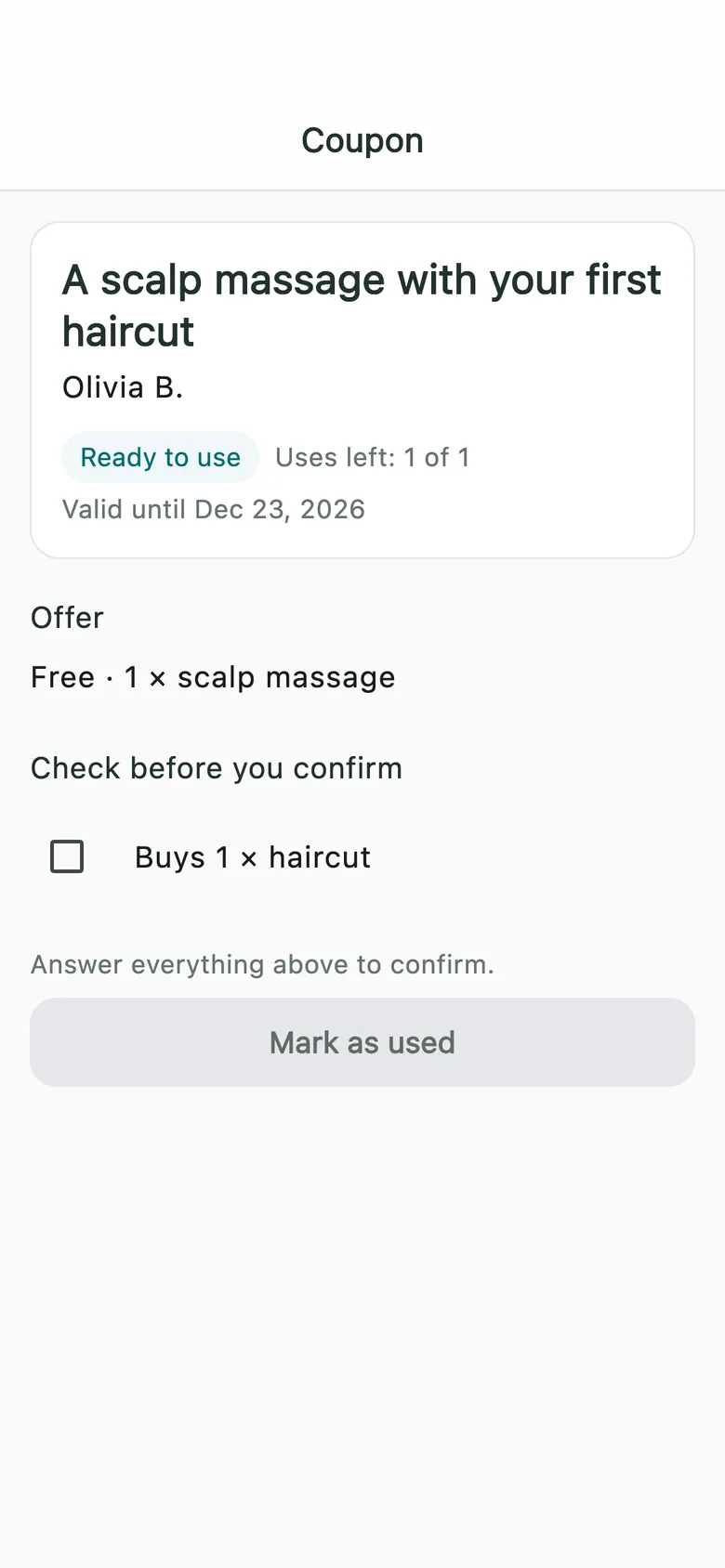
Send your link on WhatsApp to regulars you already know, or add it to your Instagram bio or story to reach local followers. At your place, put a QR code coupon on a sign, at the entrance, or anywhere customers wait or pay. Whether your customers call it a coupon or voucher, they just tap or scan to save it to their phone for their next visit.
Not sure what to offer? Here are ideas for every kind of local business, from nail salons to car washes. Pick your kind of place at the top to start from one.
Lena Hair Studio
Coupon
For new clients
Valid until
Dec 28, 2026
Uses
Single use
Someone is looking for a new hairdresser or barber. A free scalp massage gives them a reason to book their first haircut with you.
Lena Hair Studio
Coupon
With a haircut
Tue–Thu, 10 am–1 pm
Valid until
Dec 24, 2026
Uses
Single use
Have empty chairs on weekday mornings? A coupon valid only then encourages bookings for those hours.
Lena Hair Studio
Coupon
For a friend's first visit
Valid until
Dec 28, 2026
Uses
Single use
A free blow-dry gives someone a reason to book. Your regular clients pass the coupon link on to friends who have not sat in your chair yet.
Bright Car Wash
Coupon
For new customers
Valid until
Dec 28, 2026
Uses
Single use
Someone is looking for a car wash they can trust. A free extra helps them choose you.
Bright Car Wash
Coupon
With a car wash
Mon–Wed, all day
Valid until
Dec 28, 2026
Uses
Single use
Early in the week your bays stand empty. The coupon brings customers in exactly then.
Bright Car Wash
Coupon
For a friend's first visit
Valid until
Dec 28, 2026
Uses
Single use
A free vacuum gives someone a reason to try you. Your regulars pass the coupon link on to friends who have not visited your bays yet.
Rosa's Bakery
Coupon
For new customers
Valid until
Dec 28, 2026
Uses
Single use
Give new customers a small taste of what you bake.
Rosa's Bakery
Coupon
Buy one pastry and get a second one free
Mon–Fri, 1 pm–3 pm
Valid until
Dec 28, 2026
Uses
Single use
Bring customers in after the lunchtime rush with a pastry to share.
Rosa's Bakery
Coupon
Buy one, get one for a friend
Valid until
Dec 28, 2026
Uses
Single use
Customers come in pairs, and a friend tastes your baking for free whenever someone buys a cinnamon bun. Offer it at the counter or share it in a social media post.
Linden Café
Coupon
For new guests
Valid until
Dec 28, 2026
Uses
Single use
Someone walks past and hesitates. A coupon on the door gives them a reason to come in for the first time.
Linden Café
Coupon
Order a large, pay for a small
Mon–Fri, 2 pm–5 pm
Valid until
Dec 28, 2026
Uses
Single use
Your tables are free in the afternoon. A coupon valid only then brings guests in at exactly those hours.
Linden Café
Coupon
Buy one, get one for a friend
Valid until
Dec 28, 2026
Uses
Single use
Guests come in pairs, and a friend tastes your coffee for free whenever someone buys a cup. Share it at the counter or in a post on social media.
Need printable paper designs? Visit our coupon templates.
FaveCard's free coupon maker lets you design and print coupons with no sign-up. Sharing to phones needs a free FaveCard account, which has a 30-day trial and no credit card needed. Afterward, giving coupons is part of the Business plan (see our pricing page); coupons your customers already have keep working until used or their last day.
You do not need an account to use the coupon generator to design and print coupons. To share a link or QR code and put coupons in Apple Wallet or Google Wallet, you create a free FaveCard account. That connects the offer to your business so staff can scan coupons at the counter.
Customers do not need to install any app to get or use your coupon. They save the coupon straight to Apple Wallet or Google Wallet, which is already built into iPhone and Android phones, or keep your coupon link in their browser. When they visit, they simply open it and show it at your counter.
Yes, Android customers can save a Google Wallet coupon straight to their phone or keep your coupon link open in their browser. Nothing needs to be installed, and the coupon works on both Android and iPhone. At your counter, staff scan Android and iPhone coupons the exact same way in the FaveCard app.
Customers get your coupon by tapping your link or scanning your QR code, then typing their email, entering the short code we email them, and adding their first name. From there, they add the coupon to Apple Wallet or Google Wallet, or keep the link. No app is needed on iPhone or Android.
Each coupon can be used once by default, and you can stop it any time in your FaveCard account. You or your staff scan coupons in the FaveCard app, which refuses a second scan once used, unless you allow more uses. Once you stop it, nobody new can get it, and customers who already have it can still use it.
Printing your coupon is free and requires no account and no email. After editing your offer and last day, click "Print it" to get paper coupons you can hand directly to customers at the counter. If you later want customers to save the offer to their phones, you can open a free FaveCard account.
The coupon you just made carries over to your free account, with a 30-day trial and no credit card needed. The sign-up opens in the same window and shows your coupon. Then a few short steps follow: questions about your business, your business details and a confirmation link we email you. Your coupon turns on once you tap that link, ready to share by link or QR code.
Head back up to pick your offer, set the last day, and print it or share it to phones.