New: Free plan, $0, no time limit. No credit card needed.
Two free editors turn your FaveCard loyalty card into a sign for the counter and a post for Instagram. Pick a design, keep or change the words, and download. No designer needed.
Create my free card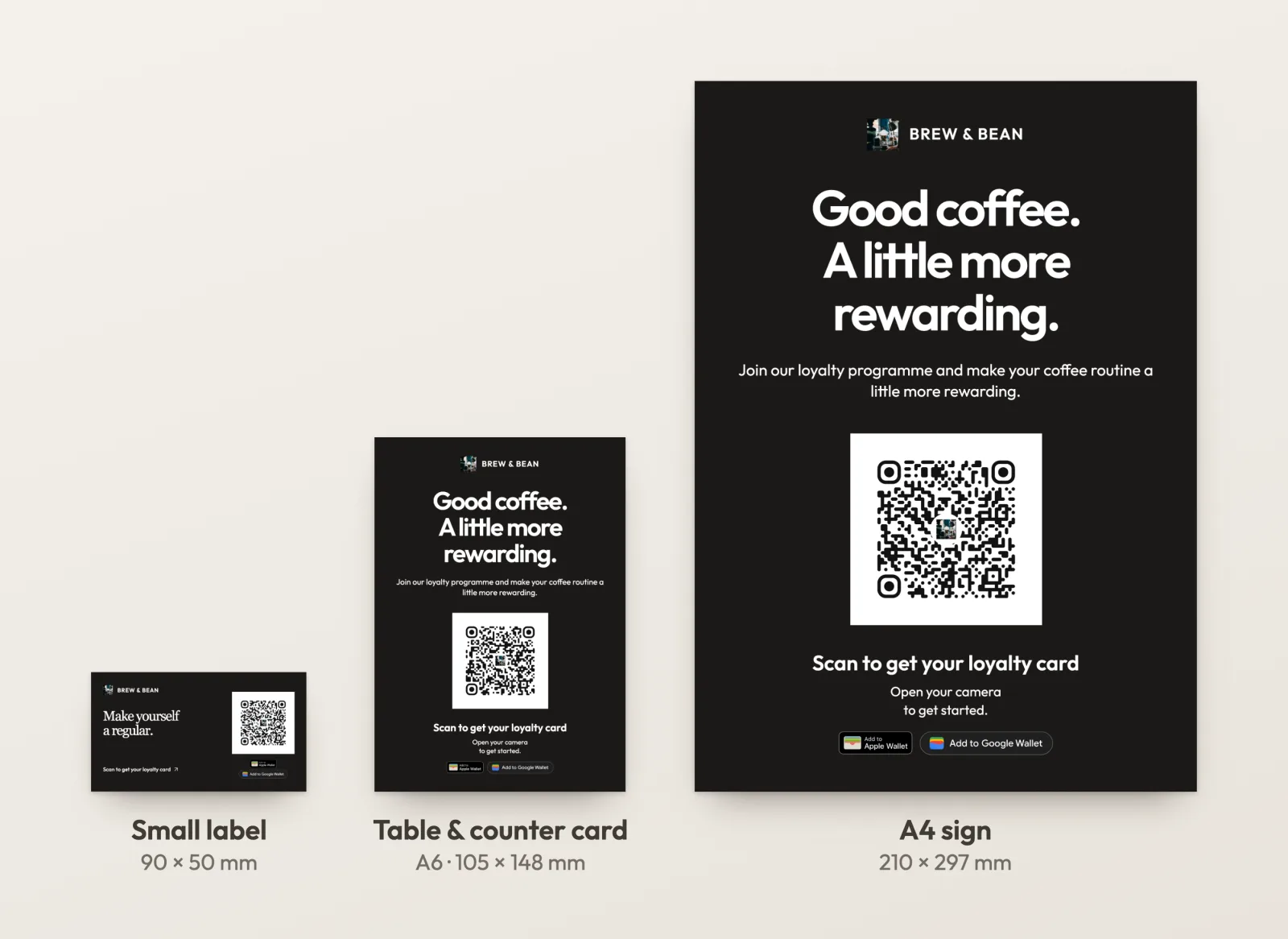
In short
FaveCard includes a print editor and a social graphics editor on every plan, Free included. The print editor turns your loyalty card into a QR code sign in three sizes (a 90 × 50 mm label, an A6 table and counter card and an A4 sign) and exports a PDF for your own printer or a print shop, or a 1600 × 1600 px QR image for your own design. The social graphics editor makes an Instagram post, an Instagram Story and a square Facebook post from the same card, with a QR code and a caption ready to copy.
People join a loyalty card when they notice it: at the register, at the table, in a post from a place they already like. A bare QR code on a blank sheet, or no QR code signage at all, and that moment passes. Designing a sign, a menu insert and an Instagram post from scratch takes an evening most owners don't have.
Both editors open with your business name, your logo if you've added one, and the link to your card already in place. Choose a design and a size, keep or change the suggested wording, and download a file that's ready to print or post.
In the FaveCard dashboard, open the Share page of your loyalty card or your Business Page. Print materials are right there.
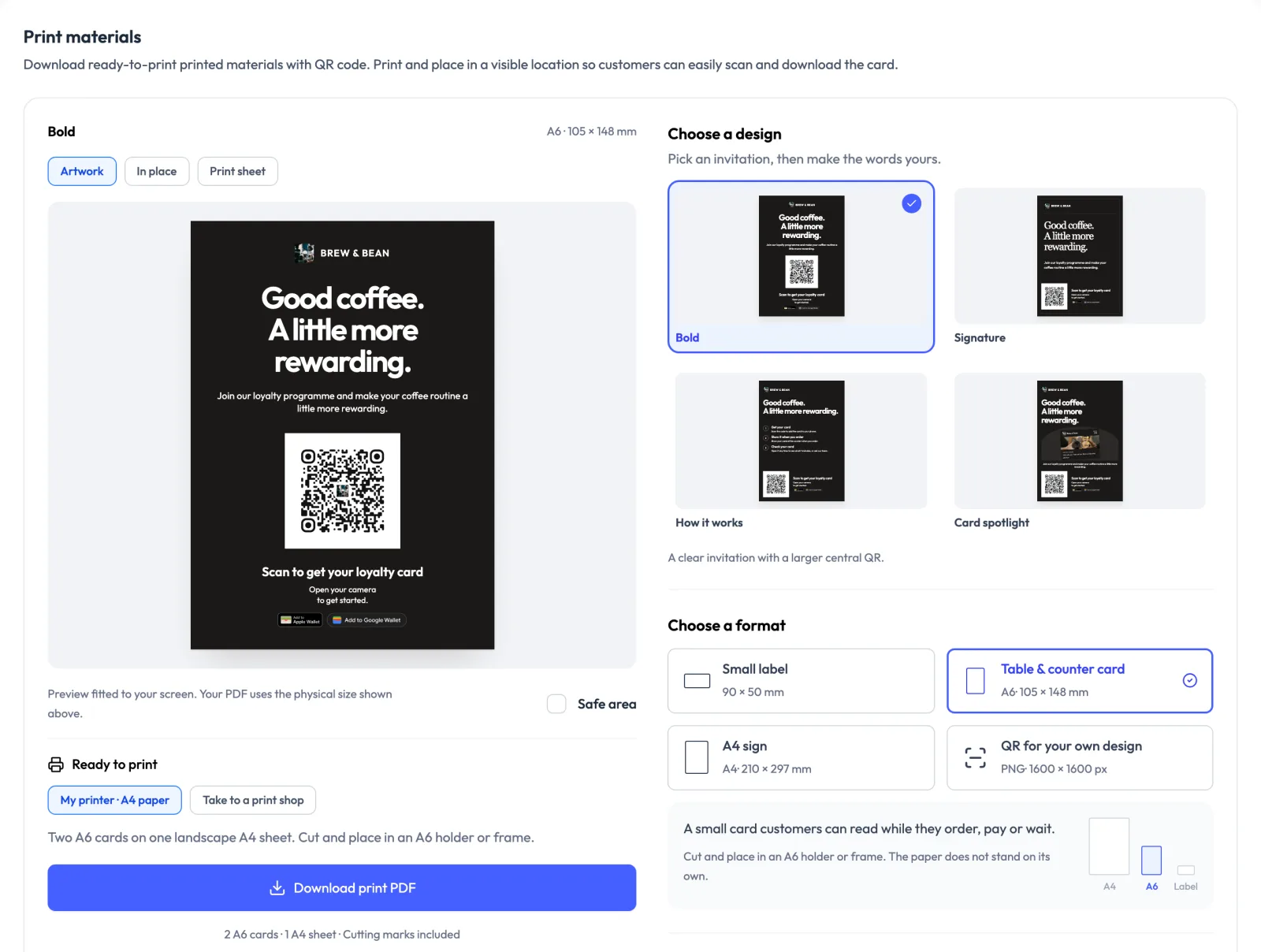
Bold, Signature, How it works or Card spotlight. Card spotlight shows your actual loyalty card. How it works explains joining in three steps you can rewrite.
A 90 × 50 mm label, an A6 table and counter card, an A4 sign, or a 1600 × 1600 px QR image for Canva, Word or your designer.
A PDF for your own printer, with two A6 cards or ten labels per A4 sheet and cutting marks, or a single-size PDF for a print shop.
Before you print fifty: print one copy at actual size (100%), scan it with your phone and check that it opens your card. The PDF has no bleed, so check with your print shop before you go edge to edge with color.
One design in four formats. Switch sizes as often as you like: your design and your wording stay.
90 × 50 mm (about 3.5 × 2 in)
About the size of a business card. For a menu, packaging, a mirror or the spot next to your card reader. It uses a compact layout with your name, your message and the QR code. Ten fit on one A4 sheet.
A6 · 105 × 148 mm (4.1 × 5.8 in)
For customers reading up close while they order, pay or wait. It's a flat card, not a folded table tent, so slide it into an A6 sign holder or a small frame. Two fit on one A4 sheet.
A4 · 210 × 297 mm (8.3 × 11.7 in)
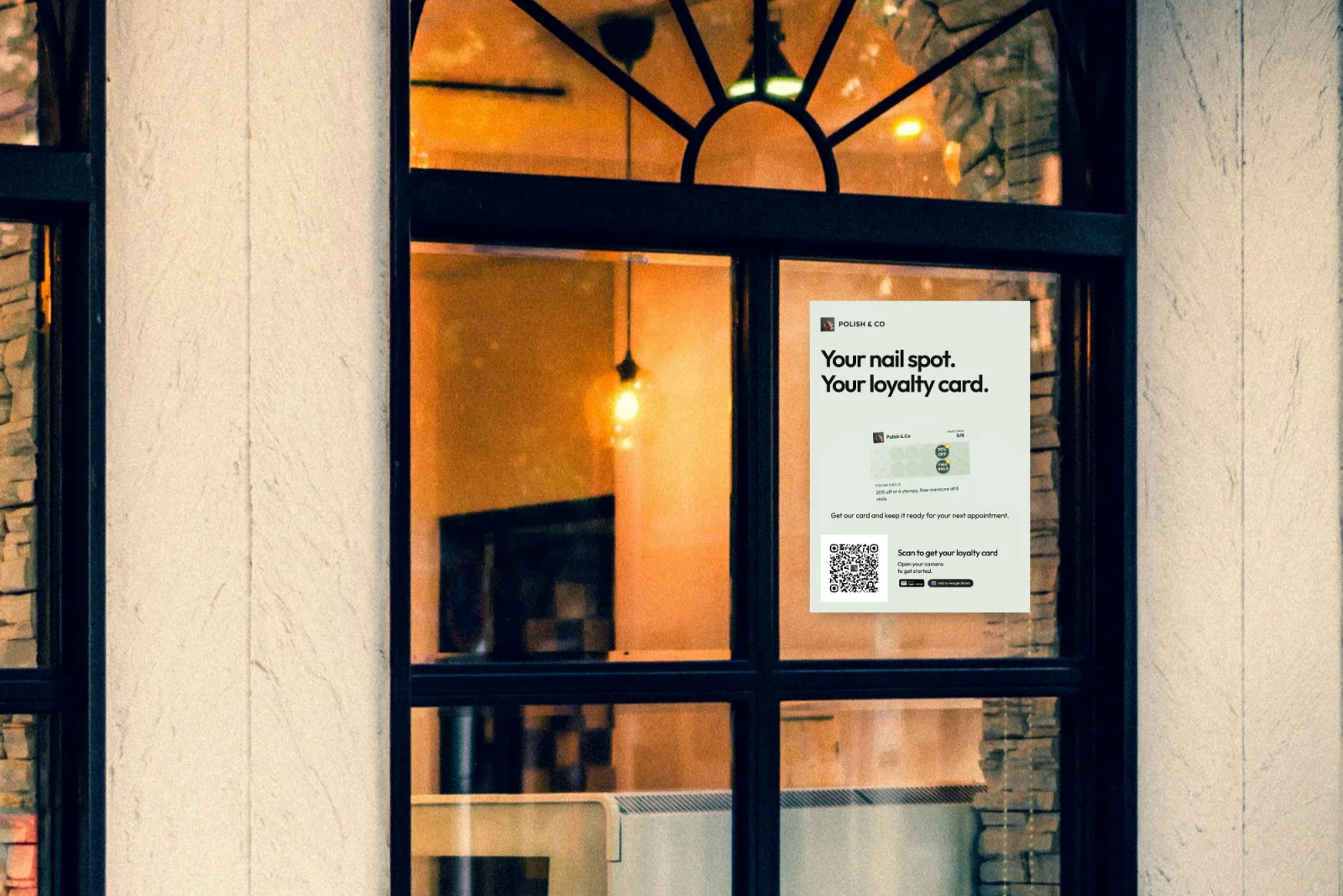
For a door, a window, a wall or reception. About four times the area of the A6 card, with a bigger QR code that people can scan from further away. No cutting needed.
PNG · 1600 × 1600 px
For your own menu, flyer or poster in Canva, Word or any design app. Start at about 40 × 40 mm (1.6 in) including the white border, and go bigger for scanning from further away.
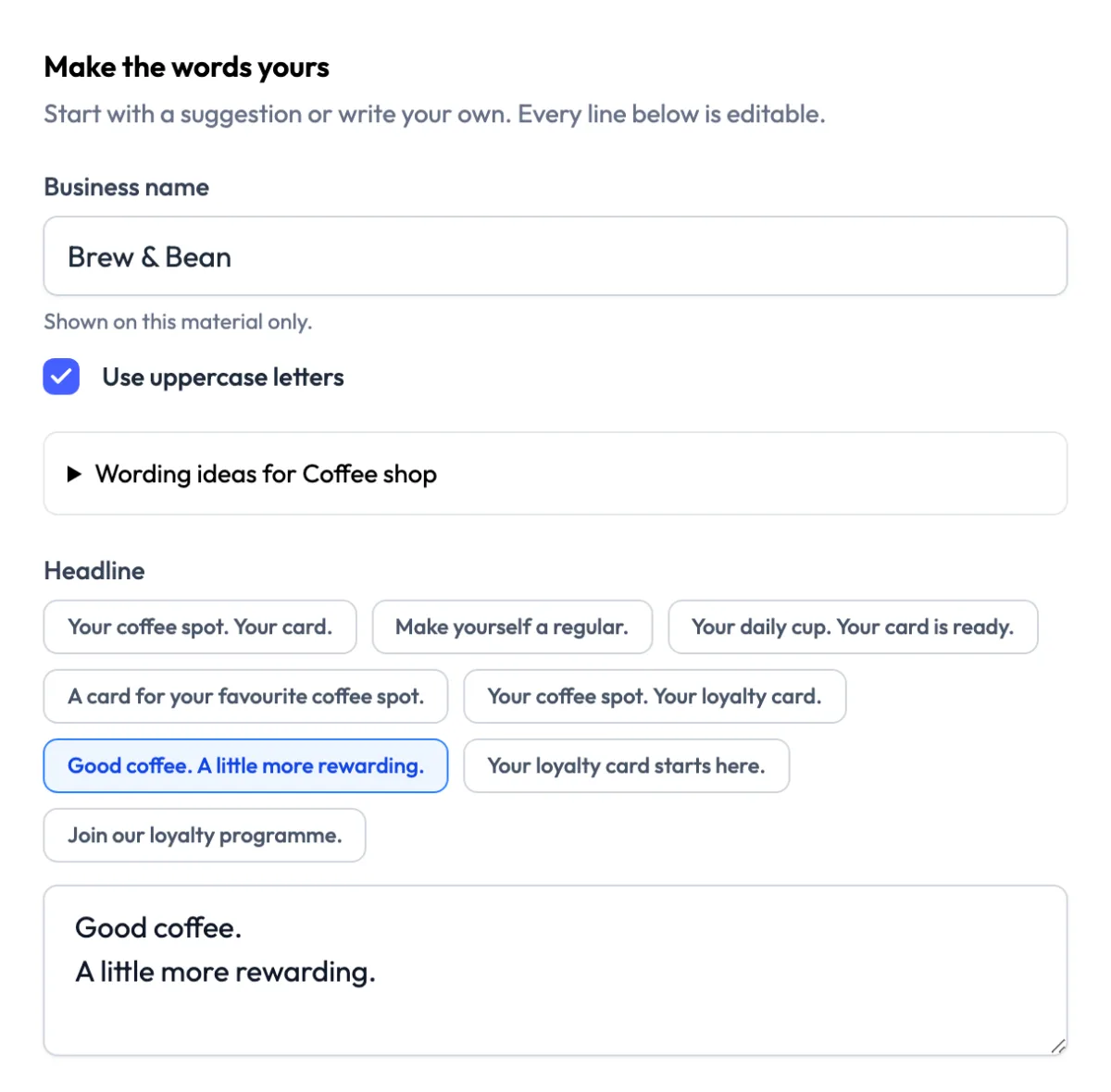
The editor suggests headlines, a supporting line and the text beside the QR code for your kind of business, so a coffee shop gets coffee lines and a barbershop gets barbershop lines. Pick one or type your own. Every line is editable, including each How it works step.
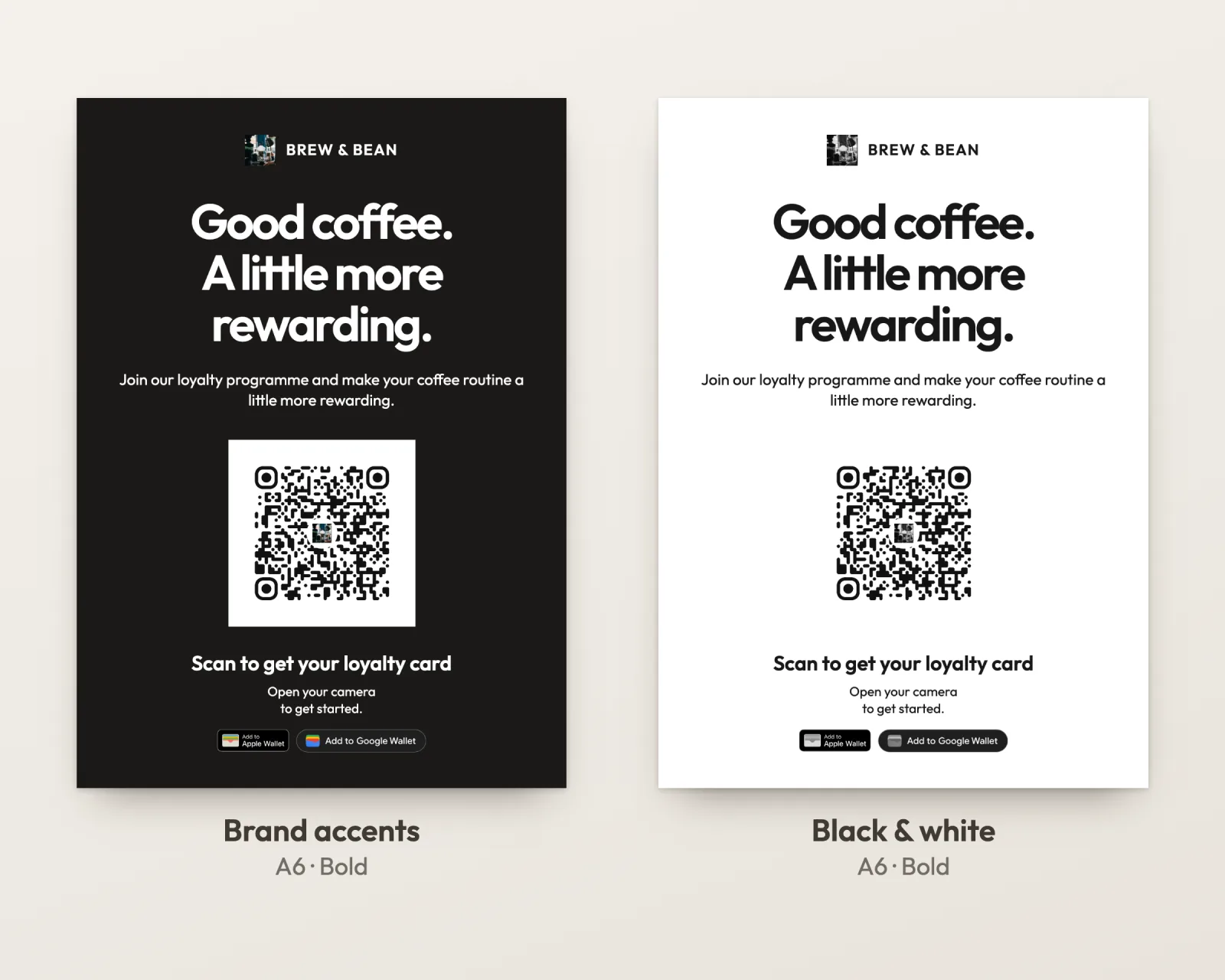
White paper is the default and uses the least ink. Add your brand accents or a custom background, or switch to black & white for any office printer: a white background, a black QR code and grayscale artwork. You can also pick the QR code color and style, and show your logo beside your business name.
What changes when the sign starts from your loyalty card.
| QR generator + design app | FaveCard editors | |
|---|---|---|
| Where the code leads | Whatever link you paste in, so double-check it | Your loyalty card or Business Page, linked for you |
| Wording | A blank page | Suggestions for your type of business, all editable |
| Print files | You size and line up everything yourself | Label, A6 and A4 PDFs, with cutting marks on home-print sheets |
| A second design job | Post, Story and Facebook sizes from the same card | |
| Price | Depends on the tool | Free on every FaveCard plan |
Already have a menu or poster you love? Keep it. Download the 1600 × 1600 px QR image and drop it into your own design.
Included with every FaveCard account
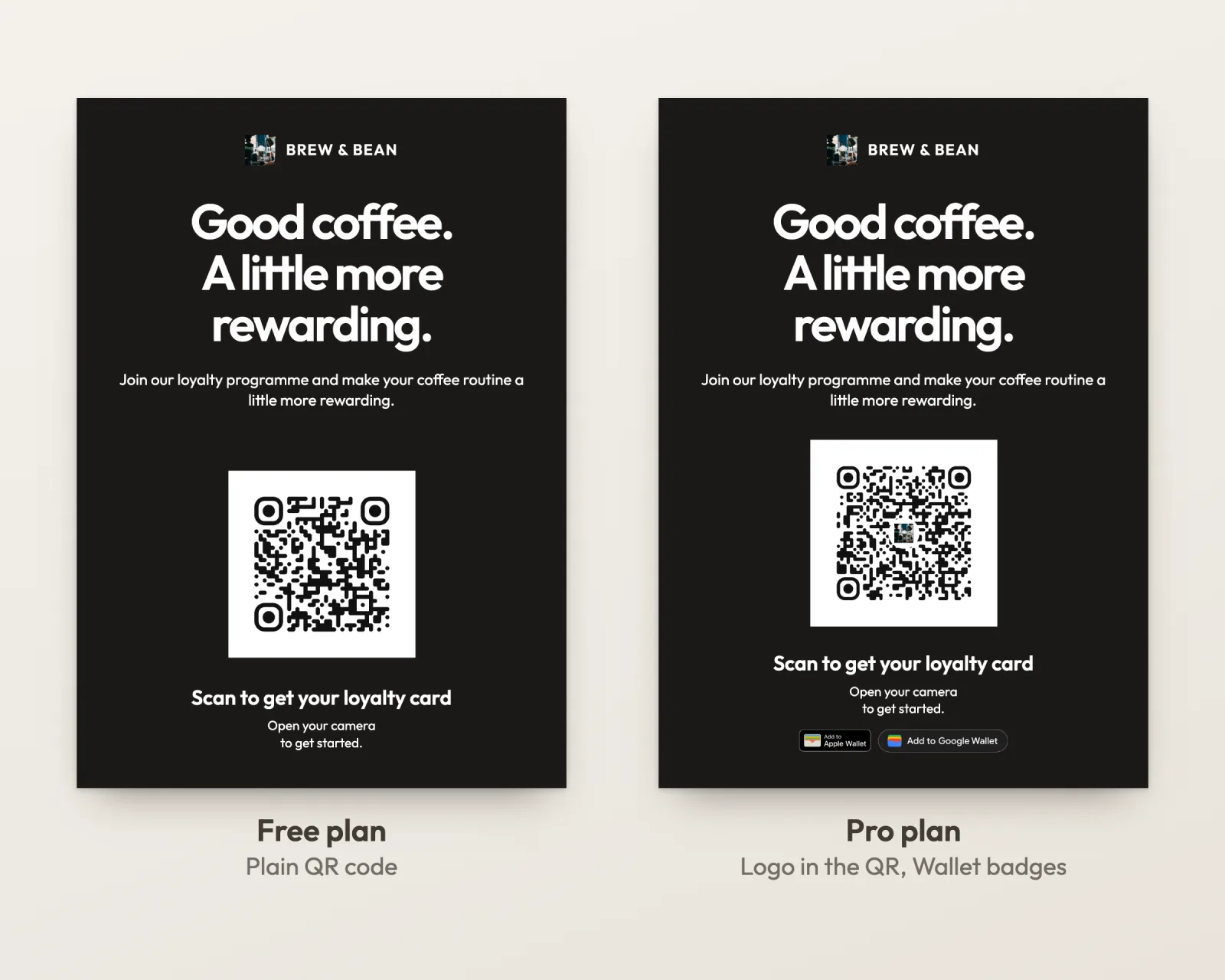
A paid plan adds two things to print materials for a loyalty card: your logo inside the QR code, and the Add to Apple Wallet and Add to Google Wallet buttons. Business Page materials can have your logo in the QR code on every plan.
Start freeEvery new account starts with premium tools until the first 30 customers are on the card. No credit card needed.
See full pricing details and what each plan includes.
Printing, sizes and social posts
Yes. The print materials editor and the social graphics editor are open on every FaveCard plan, including Free. You can use all four designs and all four formats, download PDFs and QR images, and make Instagram and Facebook graphics without paying. A paid plan adds your logo inside the QR code on loyalty card materials and the Apple Wallet and Google Wallet buttons.
FaveCard's print editor makes three print sizes and one image: a 90 × 50 mm small label (about 3.5 × 2 in), an A6 table and counter card (105 × 148 mm, or 4.1 × 5.8 in), an A4 sign (210 × 297 mm, or 8.3 × 11.7 in), and a 1600 × 1600 px PNG of the QR code for your own design. The print files are made at 300 dpi at the exact physical size.
Yes. In FaveCard's print editor, choose "My printer" and the PDF puts two A6 cards or ten labels on one A4 sheet with cutting marks, or one A4 sign with no cutting at all. Print at actual size (100%) and scan one printed copy before you make more. For a print shop, choose the single-size PDF instead.
FaveCard's print editor uses international paper sizes: A4 sheets and A6 cards. A4 (8.3 × 11.7 in) is a little narrower and longer than US Letter (8.5 × 11 in). If your printer only takes Letter, print one test page first, or take the single-size PDF to a print shop and ask for A4 or A6.
Yes. Choose "QR for your own design" and download a 1600 × 1600 px PNG of the QR code for your loyalty card or Business Page. Start at about 40 × 40 mm (1.6 in) including the white border for scanning up close, go bigger for scanning from further away, and scan a printed copy before you print more. Our guide to promoting a loyalty program shows how QR code size relates to scanning distance.
The A6 table and counter card is a flat card, not a folded table tent, and paper doesn't stand on its own. Put it in an A6 sign holder or a small frame (4.1 × 5.8 in). The holder keeps it clean, and you can slide in a new design later.
Yes, every line. The editor suggests headlines, a supporting line, the text beside the QR code and the How it works steps for your type of business, and you can pick one or write your own. Headlines can be up to 80 characters on three lines. Suggestions come in 19 languages and follow your dashboard language, and your edits stay when you try another design or size.
FaveCard's social graphics editor exports an Instagram post at 1440 × 1800 px (4:5), an Instagram Story at 1080 × 1920 px (9:16) and a square Facebook post at 1440 × 1440 px. Guides in the preview show what Instagram crops on your profile grid and covers on a Story, and the caption and card link are ready to copy.
Yes. Print materials for your Business Page can have your logo inside the QR code on every plan. For print materials linked to a specific loyalty card, the logo in the QR code and the Apple Wallet and Google Wallet buttons come with a paid plan, and every new account has them during the trial, until the first 30 customers are on the card. In social graphics, the logo inside the QR code is on paid plans. Your logo beside your business name is available on every plan.
In the FaveCard dashboard, open the Share page of your loyalty card or your Business Page. Social graphics and print materials are both there. Materials made from your Business Page link to the page, and materials made from a card link straight to that card.
Create your free loyalty card, then make the sign and the post from the same Share page.
Instagram posts and stories from the same card
Announce your card where your regulars already follow you. The social graphics editor is free on every plan too.
Six looks
Your card on a phone, your card up close, a How it works guide, a branded how-to-join guide with your logo and colors, and a transparent phone image for your own design.
Your headline, your caption
Start from a suggested headline for your business or write your own in up to 60 characters. The caption and your card link are ready to copy.
157 photos, or your own
Backgrounds sorted by type of business, color blends, a plain color, or a photo of your own place. Eight typefaces, from clean sans to serif and typewriter.
Nothing hidden under Instagram
Guides show what Instagram crops on your profile grid and covers on a Story, so the headline and the QR code stay visible.
Links in Instagram feed captions may not be tappable, so the editor reminds you to put your card link in your bio, or in a Link sticker on a Story.