




Do QR Codes Expire? How to Print One You Never Replace
A QR code never expires; the link inside it can. Why printed codes stop working, the guest Wi-Fi password trap, and how to print one code for good.
Key Takeaway:
QR codes don't expire; the links inside them do. Print a static code that opens one page you control, and when the menu, the Wi-Fi password or anything else changes, change the page, not the code.
Last updated: October 2026
The QR code on your counter is printed once and scanned for years. Whether it still works next spring has little to do with the code. It depends on what the code points to: a generator’s redirect you pay for, a PDF you might replace, or a Wi-Fi password you will change one day.
This guide covers what makes a printed code stop working, how to print one you never have to replace, and what to do about guest Wi-Fi, the one code whose contents have to change.
The short answer:
- QR codes don’t expire. The pattern holds fixed text, usually a web address, and nothing in it counts days.
- What stops working is the destination. A dynamic code dies when its plan ends, a deleted page returns an error, and a Wi-Fi code fails the day you change the password.
- To print once, point the code at your own page. When details change, you update the page and the printed code keeps working.
- Guest Wi-Fi is the one real trade-off: one-tap joining from a printed Wi-Fi code, or no reprints from a page. More on that below.
Do QR codes expire?
QR codes do not expire. A QR code is a pattern of black and white squares that stores a fixed piece of text, such as a web address or a Wi-Fi network’s details. Reading it doesn’t depend on a server or a date. A printed code stops working only when the thing it points to stops working, or when the print is too small or too damaged to scan.
When people say a code “expired”, they almost always mean a dynamic QR code that stopped redirecting. The two kinds work differently:
- A static QR code has the destination written into the pattern itself. Nobody can edit it, and it doesn’t depend on any company staying in business or being paid.
- A dynamic QR code holds a short link on the generator’s server, which forwards each scan to your real destination. You can change the destination and count scans, but the code works only while that service keeps forwarding.
QR Code Generator, a company that sells dynamic codes, puts it plainly: “Most providers require an active plan to maintain the redirection service. If you stop paying, the links pause.” That is how a code made during a free trial can stop working months after it went onto 50 table cards.
Why do printed QR codes stop working?
Printed QR codes stop working for five reasons: the generator’s plan ended, the page was deleted or moved, the Wi-Fi password changed, a free plan’s scan limit ran out, or the print is too small or damaged. Only the last one is about the code itself.
| What happened | What the guest gets | How to avoid it |
|---|---|---|
| The dynamic code’s plan ended | An error or the generator’s page | A static code to your own page, or keep the plan |
| The page was deleted or moved (new website, new PDF name) | “Page not found” | One address you never change |
| The Wi-Fi password changed | The phone can’t join | See Wi-Fi below |
| A free plan’s scan limit ran out | Whatever the provider shows | Check the plan’s limits first |
| The print is too small, faded, glossy or scratched | The camera doesn’t react | Size it for the distance (size test), avoid strong sun |
QR Code Generator’s own list of reasons a code stops working includes “You reached the scan limits on a free plan”.
Can you change a QR code after printing?
You can’t change what a printed QR code contains, only what is at the address it holds. So the answer depends on what the code holds: your own page can be edited at any time, while Wi-Fi details or a link to someone else’s page need a new code.
| The printed code holds | Can you change what guests see without reprinting? |
|---|---|
| The address of your own page | Yes: edit the page |
| A dynamic short link | Yes, in the generator’s account, while the plan is active |
| The address of a PDF file | Only if the new file replaces the old one at the same address |
| A link to a page you don’t control | No |
| A Wi-Fi network name and password | No: a new password needs a new code |
Static or dynamic: which should a small business print?
For a café, shop or salon whose code opens “everything about us”, a static code that points to a page you can edit does the same job as a dynamic code, with nothing to renew. You can still update what guests see at any time; you edit the page instead of a redirect.
A dynamic code is worth paying for in two cases:
- You need scan counts per spot, for example to compare the flyer, the window and the menu.
- One printed code has to open different pages over time, for example a poster that sends people to whatever this month’s offer is.
If you choose dynamic, put the renewal date in your calendar. The code on the paper won’t tell you when the redirect stops.
One code, one page: what to put behind it
The way to print one code for good is to point it at a single page you update, and to put on that page everything a guest needs while they are with you. A new menu, a new Wi-Fi password or this week’s event then means editing the page, not reprinting.
| What guests look for on site | How often it changes |
|---|---|
| Menu or price list | Every season, and with every price change |
| Guest Wi-Fi | Every time you change the password |
| Events and news | Weekly or monthly |
| Products and services | When you add or drop one |
| Table booking link | When you switch booking tools |
| Loyalty card | Rarely |
| WhatsApp or phone | Rarely |
| Google review link | Never |
| Directions | Only if you move |
The top rows are why people end up reprinting: a menu code that opens last season’s PDF is the classic example. Our guide to one QR code for your menu, Google reviews and loyalty card covers what the page should show first and how to lay it out. This guide is about keeping the code.
Should you print a Wi-Fi QR code?
A Wi-Fi QR code joins a guest’s phone to your network in one tap, but the password is printed inside it, so a new password means a new code. Wi-Fi details on a web page never need reprinting, but guests copy the password and paste it into their Wi-Fi settings. How often you change the password decides which one fits.
A Wi-Fi QR code is a static code that holds the network in a standard format, WIFI:T:WPA;S:network name;P:password;;, which phone cameras recognise and offer to join. According to The QR Code Generator, “Wi-Fi QR Codes work with iPhones running iOS 11 or later and most Android devices running Android 10 or later.”
| Printed Wi-Fi QR code | Wi-Fi details on your page | |
|---|---|---|
| What the guest does | Points the camera at the code, taps Join | Opens the page, copies the password, pastes it in Wi-Fi settings |
| After a password change | A new code, reprinted wherever it’s shown | Edit the password once |
| Laptops | Only if the password is also printed next to the code | The password is on the page to type |
| Who can read the password | Anyone who scans the code | Anyone who opens the page |
| One-tap join | Yes | Yes for a second device, if the page can show a Wi-Fi code on screen |
Which one fits:
- You rarely change the guest password. A printed Wi-Fi code at the counter is the quickest option for guests. Any free generator makes one, and the format above is all it holds.
- You change it regularly. Some Wi-Fi guides recommend monthly changes. One, getwifiqr, advises “Change your guest WiFi password monthly” and “Generate a new QR code each time and swap out the old print.” If that’s you, put the Wi-Fi on the page behind your one code and edit it there.
- Both. Nothing stops you printing a Wi-Fi code and also listing the network on your page. Just remember that the printed one goes stale first.
Why can’t a web page join the Wi-Fi for them?
A web page can’t join a guest’s phone to a Wi-Fi network. Neither Safari on iPhone nor Chrome on Android gives websites a way to join or set up a network; only the phone’s own camera and settings can (FaveCard checked both in October 2026 while building its Wi-Fi tile). That is why a page shows the password with a copy button.
For one-tap joining, a page can show a Wi-Fi code on screen for a second phone to scan. Phones share Wi-Fi the same way themselves. On iPhone, you can “tap Show Network QR Code, which friends and family can scan to join the network” (Apple). On Android, “Your device will give you a QR code. To join the same network, have your friend scan the code with another device” (Google).
How to pick a guest Wi-Fi password guests can type
- Use a separate guest network. Whatever you print or put on a page is public. FaveCard’s own editor warns: “Share your guest network, never the one your card terminal or office devices use.”
- Use 8 to 63 plain characters: letters A–Z, digits, spaces and symbols. The Wi-Fi security standard (WPA) defines passwords in plain keyboard characters only, so accented letters and emoji often fail to connect; FaveCard’s editor doesn’t accept them.
- Avoid lookalike characters such as l, 1 and I, or O and 0, because someone will type it on a laptop. FaveCard’s page shows passwords in a monospace font for the same reason.
- Leave no space at the start or end. A stray space copied along with the password makes it wrong, and nobody can see it.
- Keep the network name short. Wi-Fi allows at most 32 characters, fewer with accented letters or emoji.
Example: one code for everything on a FaveCard page
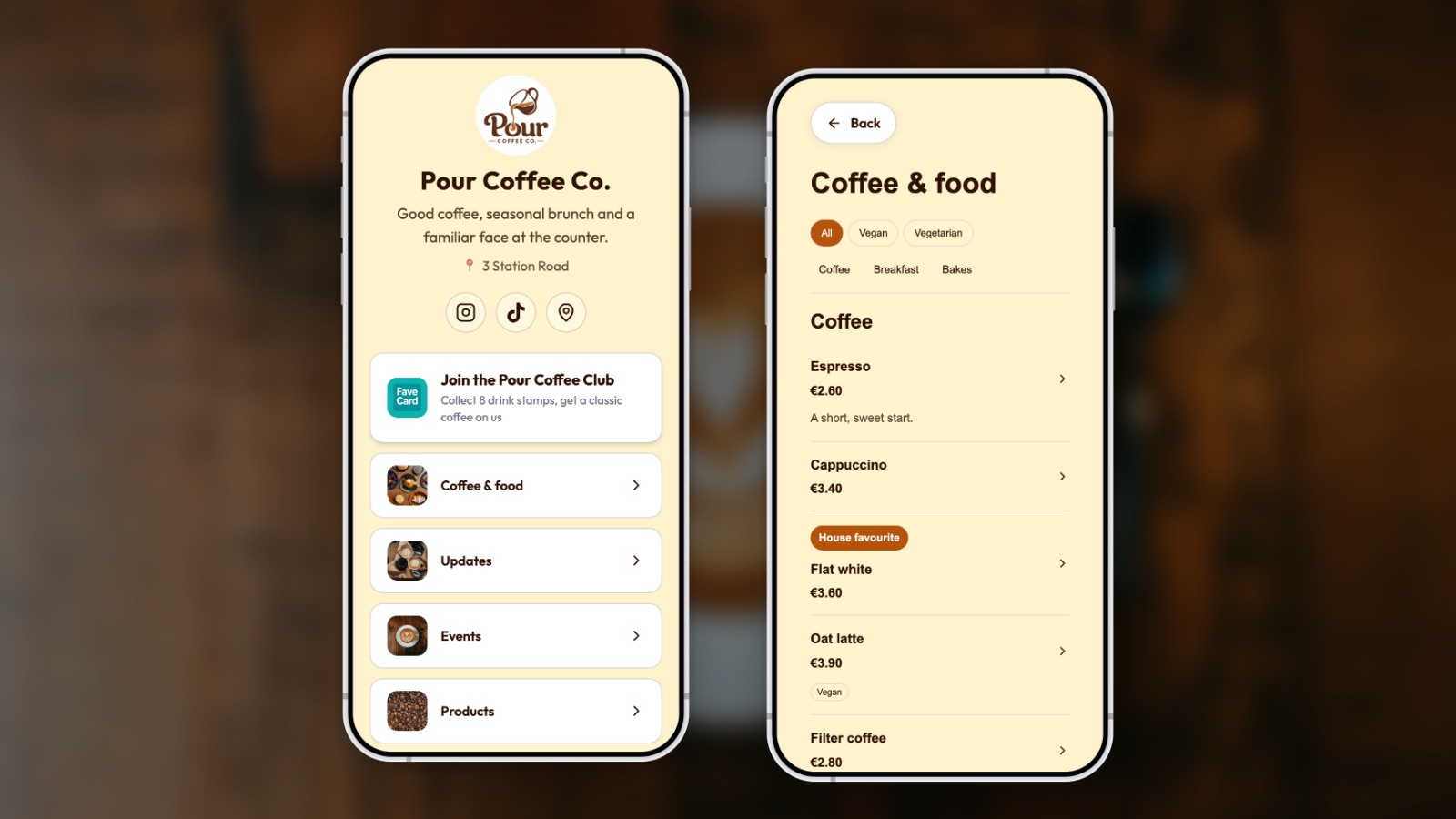
FaveCard is our product, so this is one example of the setup above, not the only way to do it. Pour Coffee Co. is an example business from FaveCard’s setup, not a customer.
A FaveCard account comes with a business page at an address like my.favecard.co/pour-coffee-co, and the page’s QR code from the print editor is a static code that opens it directly. As of October 2026, three details keep that code working:
- The address is created once, from your business name. Renaming the business later doesn’t change it, so the address keeps the original name. It is released only if you delete the account.
- Nothing sits in between. Printed codes add a short
?pm=tag that records which printed format was scanned. There is no short link, no third-party redirect and no expiry date. - Plan changes don’t touch the code. The loyalty card button, contact buttons, links, Google review link and Wi-Fi stay on the page on every plan, including Free. The menu and the other content sections need the Business plan, and a logo or cover photo needs Pro (pricing by country).
The page, from top to bottom:
- Your name, description and address. Once you pick your Google Maps listing, the address opens directions.
- The loyalty card button, always first.
- Your guest Wi-Fi, directly under it, once you add a network.
- Menu, products, services, portfolio, updates and events.
- Call, WhatsApp or Telegram buttons, a “Reserve a table” button that opens the booking site you already use, links to your other tools, and “Leave a review on Google”.
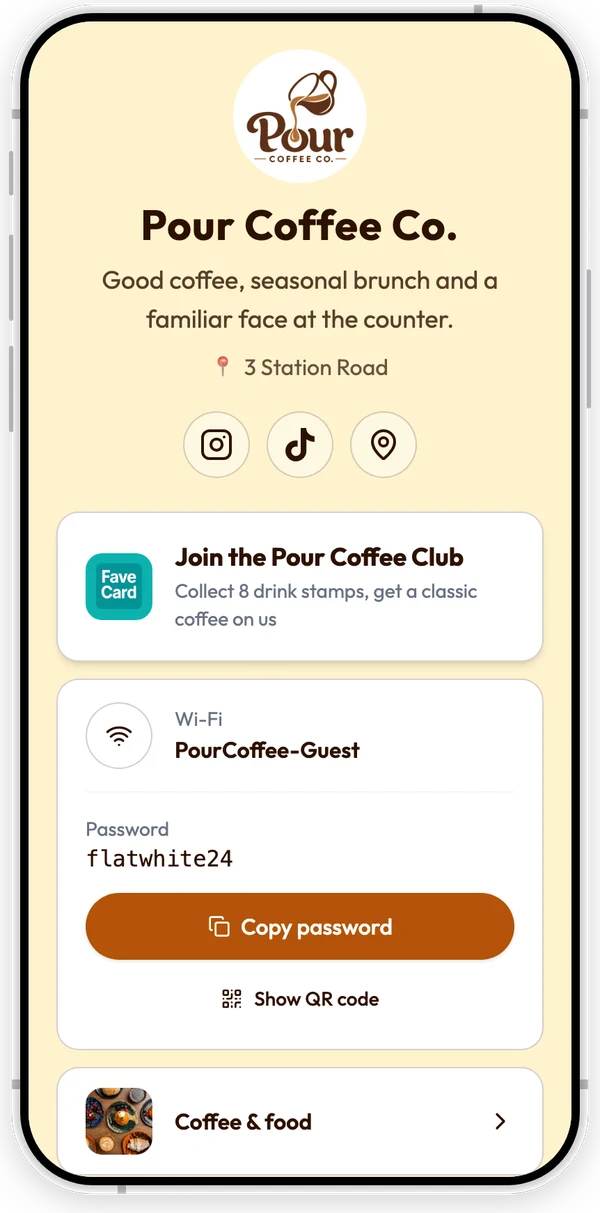
The first screen of an example page. The Wi-Fi tile sits directly under the loyalty card button.
Adding guest Wi-Fi. In Your Page → Guest Wi-Fi, enter the network name exactly as it appears in Wi-Fi settings and the password, or leave the password empty for an open network. Keep “Show Wi-Fi to customers” switched on. The page then shows the network name, the password, a Copy password button and Show QR code. After a guest taps Copy password, the page tells them what to do next: “Open Wi-Fi settings, choose PourCoffee-Guest and paste the password.” Show QR code opens a large Wi-Fi code in the standard format, so a friend’s phone or a second device can join by scanning it with its camera. When the password changes, you edit it in the same place, and the next scan shows the new one.
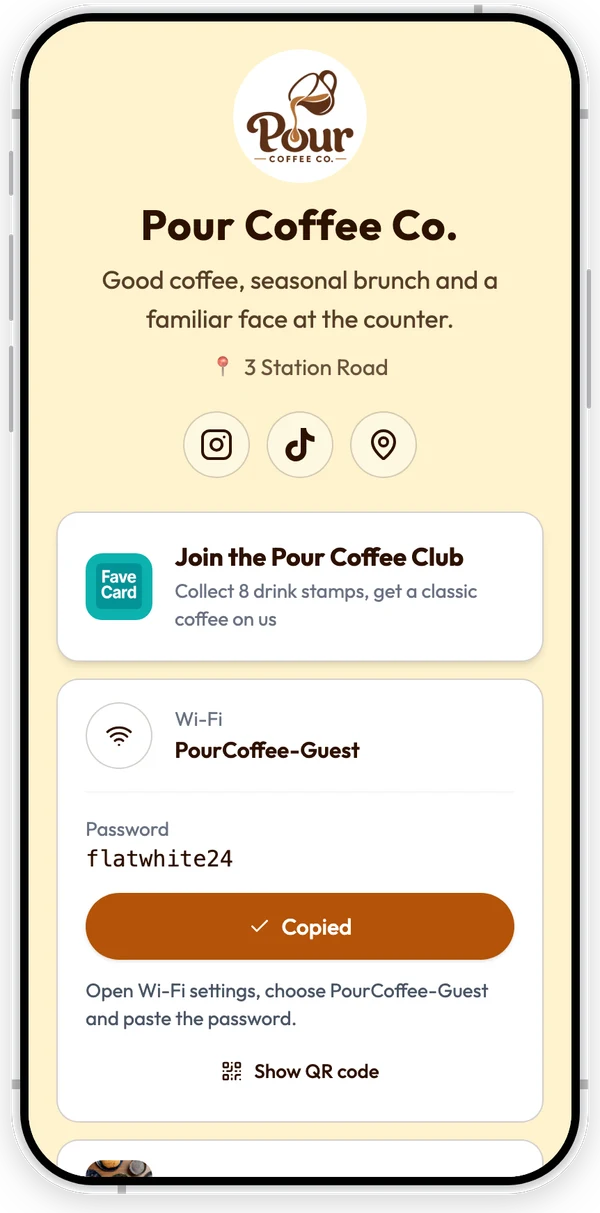
After Copy password, the page tells the guest where to paste it.
What changes without a reprint. A new menu price, this month’s event, a new booking tool or a new Wi-Fi password: each is an edit in Your Page, and the printed code keeps opening the same page. Print the code once as a 90 × 50 mm label, an A6 table and counter card, an A4 sign, or a PNG for your own design. The business page overview shows everything else the page can hold.
Before you print: a five-minute check
- Scan the proof with an iPhone and an Android phone.
- Read the address before you tap. Phone cameras show where a code leads. If it is your own page’s address, the code is static and yours. If it is the generator’s domain, you are renting a redirect.
- Open it on mobile data, not your own Wi-Fi, the way guests will.
- Check the size for the distance it will be read from. Our QR code size test has a chart.
- Keep the file, so a damaged sign can be reprinted with exactly the same code.
If you already use FaveCard, your page and its code exist: open Your Page, add your guest Wi-Fi, and print the code once. If you don’t, create your loyalty card first; the page comes with it.
Frequently Asked Questions
Do free QR codes expire?
A free static QR code never expires, because it holds your link directly and no service sits in between. Free dynamic codes are different: they send every scan through the generator's server, and many generators stop forwarding when a free trial or plan ends. If a free generator offers codes you can edit or track later, assume they are dynamic.
How do I make a QR code that doesn't expire?
Make a static QR code that holds the full address of a page you control, such as your own website or a business page you can edit. Most free generators make static codes for plain web addresses. When something changes, edit the page, not the code.
Can I change where my QR code goes after printing?
Not if it is a static code: what is printed stays. You can still change what guests see by editing the page the code opens. A dynamic code lets you change its destination in the generator's account, but only while its plan is active.
What happens to a Wi-Fi QR code when I change the password?
It stops working, because the old password is printed inside the code and phones try that one. Make a new code for the new password and replace every printed copy, or show your Wi-Fi details on a page you can edit instead, so a password change never needs a reprint.
Is it safe to show my Wi-Fi password on a web page?
Only for a guest network. Anyone who opens the page, or scans a printed Wi-Fi code, can read the password, so share a network that is separate from the one your card terminal, till and office devices use.
Does a FaveCard QR code change if I rename my business or change plans?
No. The page address is created once from your business name and stays the same after a rename or a plan change; only deleting the account releases it. On every plan the page keeps your loyalty card button, links, contact buttons, Google review link and Wi-Fi. The menu and other content sections need the Business plan.
Why is my QR code not working?
First check what it points to: scan it and open the address the camera shows. If the page is gone or shows the generator's own message, the link behind the code is the problem, not the code. If the camera does not react at all, the print is too small for the distance, damaged, glossy or too low in contrast.