One QR Code for Your Menu, Google Reviews and Loyalty Card
Put your menu, loyalty card and Google review link behind one QR code on the table: what the page should show, how to set it up, and what to avoid.
Key Takeaway: A QR code holds one link, so point the code on your tables at one page: your loyalty card first, the menu one tap away, and a Google review link everyone can see. Print it once and change the page, not the code. Leave ordering, booking and payment to the tools you already use and link to them from the page.
FaveCard Team
Published September 29, 2026 · Updated September 29, 2026
Last updated: September 2026
The QR code on a table gets scanned by someone who is already inside your place, sitting down, with their phone in their hand. You won’t get a better moment with that person. Most table codes open a PDF menu, and when the guest pays and leaves, you have no way to reach them again.
The same scan can do three jobs: show the menu, put your loyalty card on the guest’s phone, and ask for a Google review. This guide covers how to set that up with one code, what the page behind it should show, and what to avoid.
The short answer:
- A QR code holds one link. Point it at one page, not at a menu file.
- On that page, put the loyalty card first, keep the menu one tap away, and show a Google review link to everyone.
- Print the code once. Change the page, never the code.
- Ask for reviews, never pay for them, and never ask only the happy guests.
- Leave ordering, booking and payment to the tools you already use, and link to them from the page.
Can one QR code open your menu, reviews and loyalty card?
Yes, as long as the code opens a page instead of opening one of the three directly. A QR code stores a single web address. “A QR code for multiple links” always means a code for one page that lists several things, the same idea as a link-in-bio page on Instagram.
That page is also why you only print once. The code on the table holds the page’s address, not the menu. When a price changes, you change the page, and every printed code shows the new version at the next scan.
One thing to check before you print 50 table cards: who owns the link inside the code. Some free QR generators make “dynamic” codes that redirect through the generator’s own server, and those can stop working or show ads when a free period ends. A code that points straight at your own page doesn’t depend on anyone’s trial.
What should the page behind a table QR show?
Three things, in this order of importance for your business: a reason to come back, the menu the guest came to look at, and a way to vouch for you.
| On the page | Why it’s there | On a FaveCard page |
|---|---|---|
| Loyalty card | The part built to bring the guest back. Once it’s on their phone, they have a reason to return and you have a way to reach them. | The first button, always. One tap, a name and an email, then it’s in Apple Wallet or Google Wallet. |
| Menu, services or products | What the guest actually scanned for. | A Menu section with sections, prices, sizes, extras and dietary tags. Services, products, events and news if you need them. |
| Google review link | The guest is still in your place and can tap it before they forget. | ”Leave a review on Google”, shown to everyone once your Google listing is connected. |
| Contact and your other tools | For questions, bookings and takeaway orders you already handle elsewhere. | Call and WhatsApp buttons, up to three links to your booking or ordering site. |
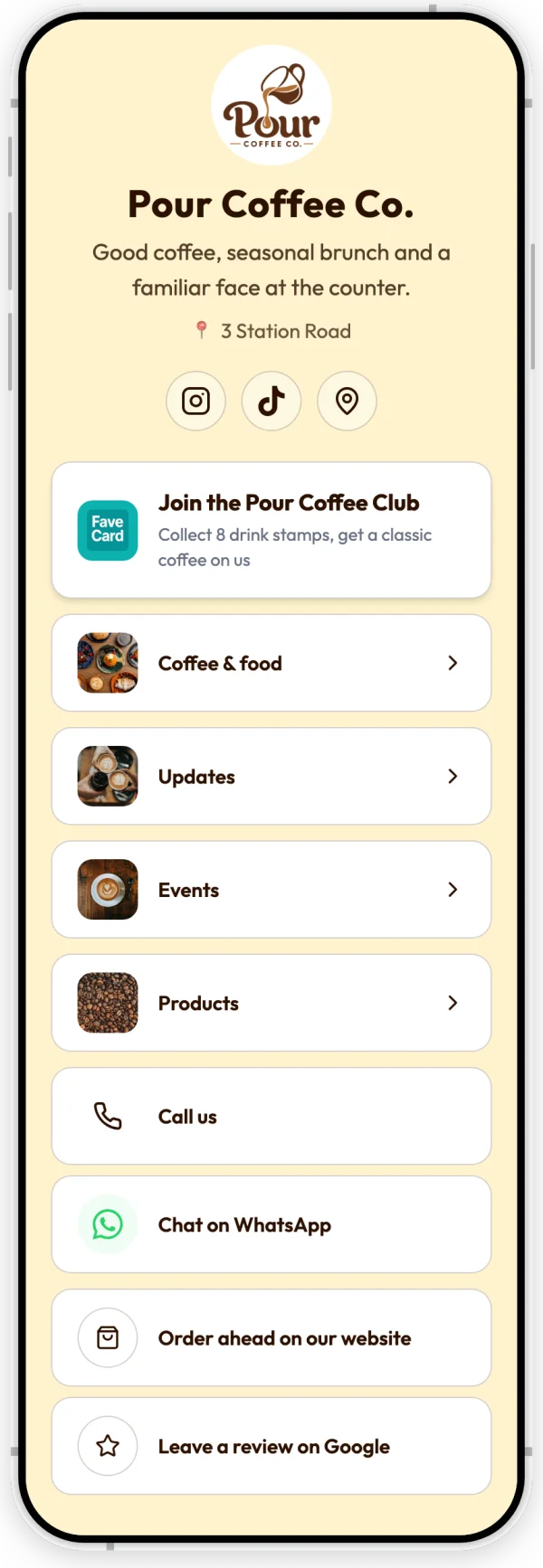
The whole page of Pour Coffee Co., an example business, shown on the real FaveCard page. The first screen after the scan ends around the menu tiles.
Why the card before the menu? The menu is one tap away either way, and the guest will find it. The card is the part they skip unless it’s the first thing they see, and it’s the part that keeps working for you after they walk out.
Three ways to put it behind one QR code
You can tie separate tools together with a link-in-bio page, use a QR menu app, or use one page that holds all three. Each is a fair choice for a different business.
| Separate tools | QR menu app | FaveCard business page | |
|---|---|---|---|
| What you set up | A link-in-bio page such as Linktree, a menu tool, a Google review link and a loyalty app | One app, often with ordering and payment | One page with the menu, the card and the review link |
| Menu with prices | In the menu tool, linked from the page | Yes | Yes, with sizes, extras and dietary tags |
| Loyalty card | A separate app, linked from the page | Usually a separate tool | Included, first on the page |
| Google review link | You add it as a link | Some apps include one | Included once your Google listing is connected |
| Ordering and payment at the table | Through a linked tool | Often built in | No; link to the tool you use |
| What you keep up to date | Three or four accounts | One | One |
If you want guests to order and pay from their phone at the table, a QR menu app with ordering is the right tool for that job. If you already use a loyalty app and a menu tool you like, a link page that ties them together works too; you’ll just have a few logins and links to keep current. Many cafés, bakeries, barbershops and small restaurants need less than either: a menu or price list that reads well on a phone, a card that brings regulars back, and more reviews. That’s the case the FaveCard page is built for.
How to set it up in FaveCard
Your business page comes with every FaveCard account, and your loyalty card is on it from the start.
- Create your loyalty card if you don’t have one yet. It takes about five minutes, and the card becomes the first button on your page.
- Fill in the page basics in Your Page: name, a short description, your location and social links. When you pick your Google Maps listing, the “Leave a review on Google” link switches on by itself.
- Add your menu. In “Add to your page”, choose Menu. You can start from an example shown in your own name, logo and colors, or from a blank page. Add sections, prices, sizes and extras, dietary tags and a photo per item. Changes stay a private draft until you publish.
- Add anything else you need: services with prices and durations, a few products, a portfolio of your work, a news post or an event with a date.
- Print the page’s QR code from the sharing section. The print editor makes an A6 table and counter card, a 90 × 50 mm label for menus and takeaway boxes, and an A4 sign for the door. Above the editor, FaveCard reminds you that this QR also collects Google reviews, so you don’t need a separate review sticker.
- Use the same link everywhere else: your Instagram bio, your Google Business Profile, WhatsApp.
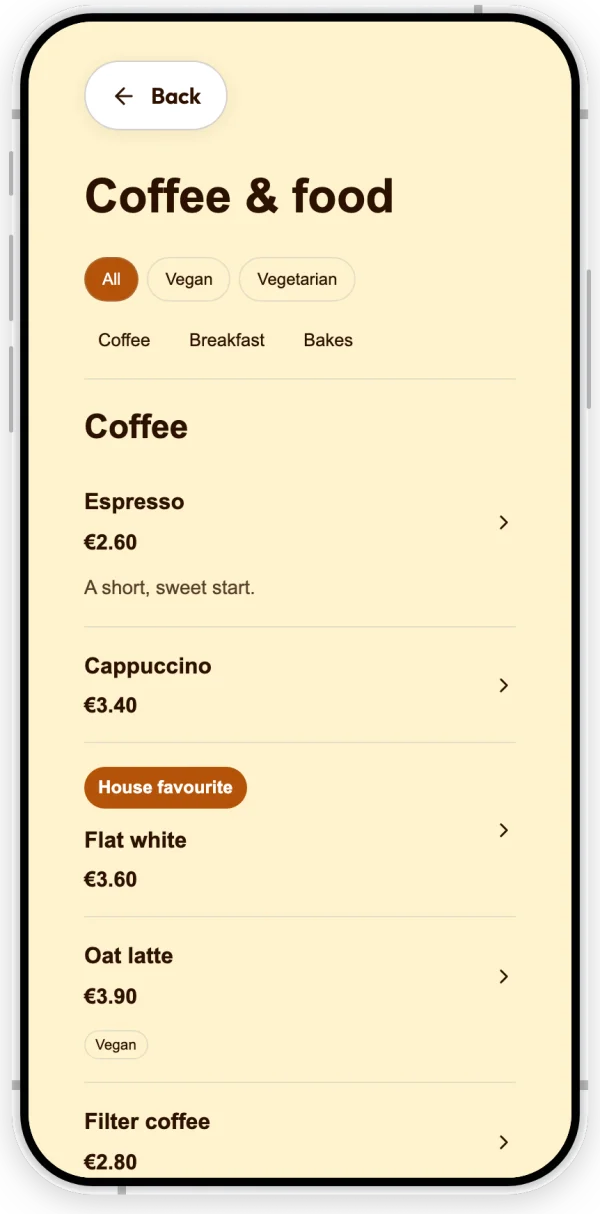
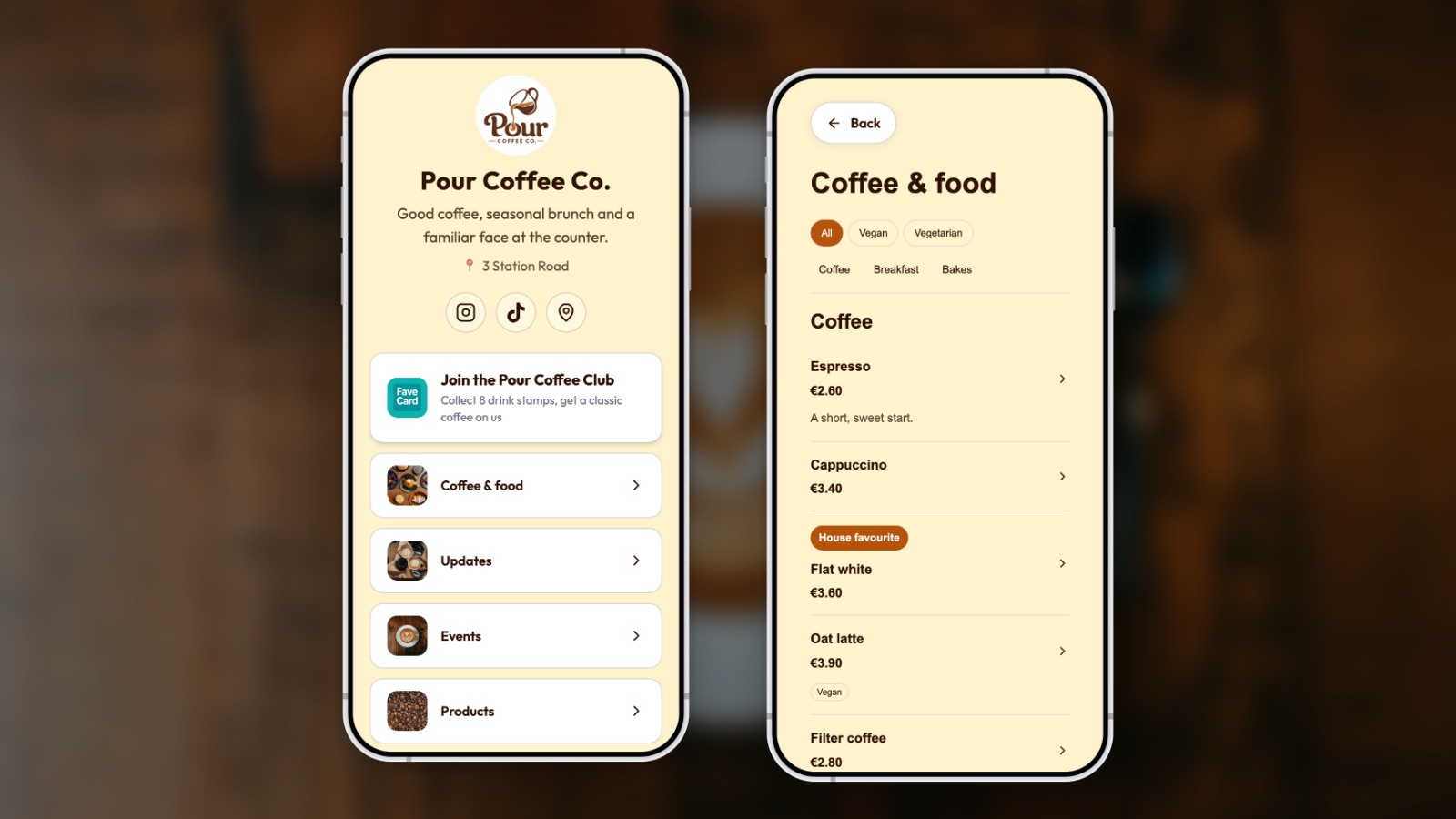
The Menu section of the same example page. You can switch on a search box and dietary filters for guests.
What it costs. The page with your loyalty card, links, contact buttons and the Google review link is free on every plan. The menu and the other content sections (products, services, portfolio, updates and events) are part of the Business plan, and every new account can use them free until its first 30 customers join the card. Your logo and a cover photo on the page, and cards that go straight into Apple and Google Wallet, come with Pro. See pricing for your country.
Examples by type of business
These are made-up businesses, based on the examples in FaveCard’s setup, not customers. They show how the same page changes with the business.
A café: Pour Coffee Co. A QR card on every table. The page opens with “Join the Pour Coffee Club” (eight drinks, then a classic coffee on them), then the Coffee & food menu with breakfast served until 11:30. An update announces this season’s drink, and an event page invites regulars to a latte art morning on Saturday. The guest who scanned for the flat white price leaves with the club card in their wallet and a review link one tap away.
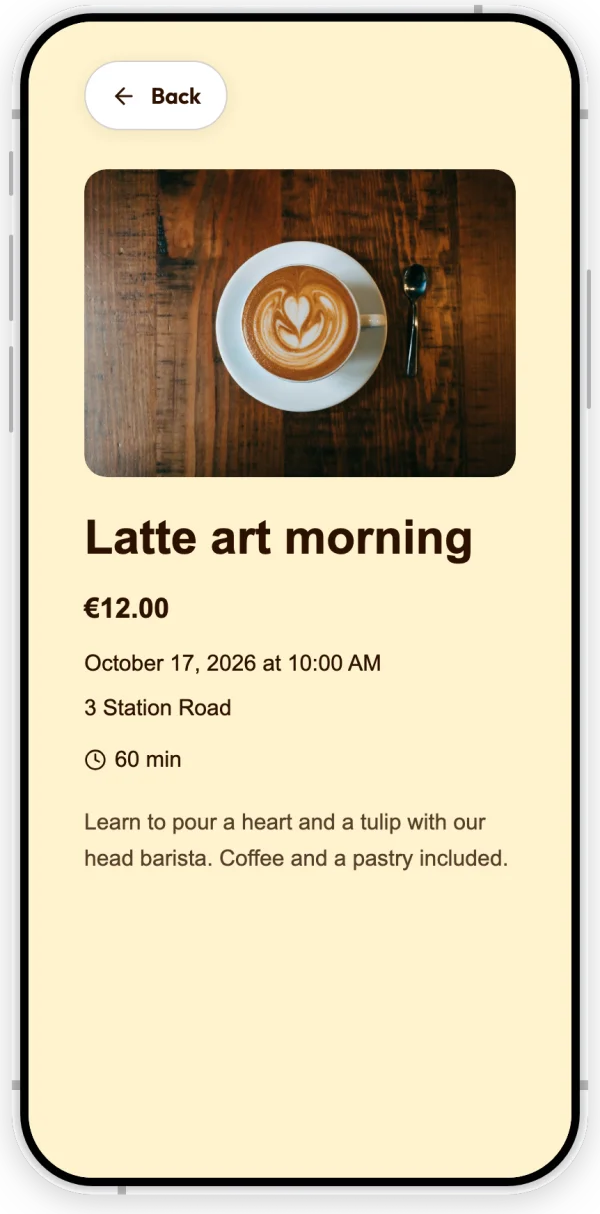
An event on the example page, with its own date, price and details.
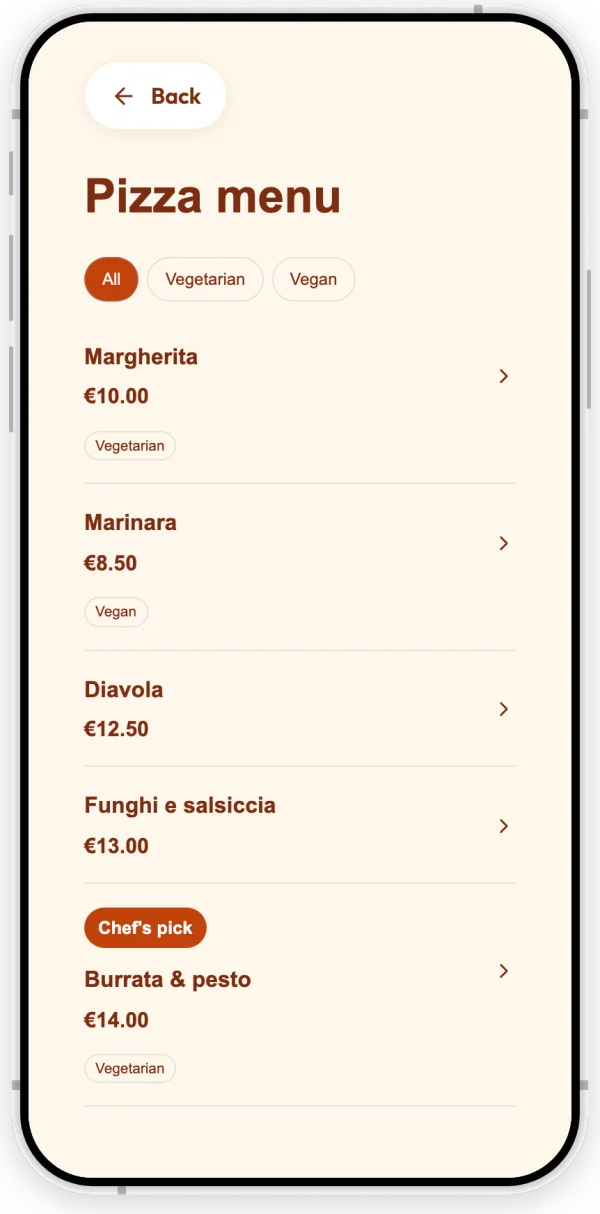
A pizzeria: Forno Amici. The same QR goes on the tables and on the takeaway boxes. At the table, it opens the pizza menu, where guests can filter for vegetarian or vegan pizzas. At home, the “Order on our website” button sends them to the ordering site the pizzeria already uses. Either way, the pizza card is the first button: six visits, then garlic flatbread on the house.
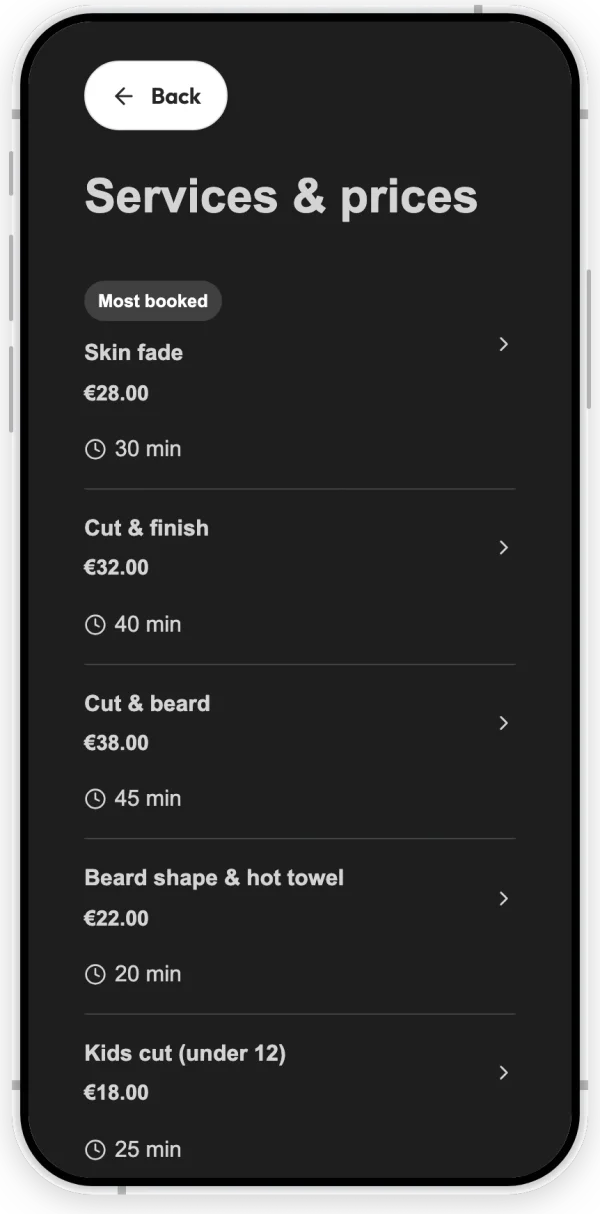
A barbershop: Northside Barber. No menu, but a price list: skin fade, cut and beard, beard shape with a hot towel, kids’ cuts, each with its price and how long it takes. A portfolio shows recent cuts. “Book with a barber” goes to the booking app the shop already uses. The QR sits by the mirror, where clients look at it for twenty minutes, and the card gives a beard tidy after five cuts.
A bakery: Honey & Bee. The breakfast menu for people at the counter, and celebration cakes as products with “price on request”. A customer taps “Ask” next to a cake, and WhatsApp opens with the question already written, ready to add the date and the number of guests.
Can you ask for Google reviews with the same QR?
Yes, and a table is a good place to do it: the guest is still there, and it takes them one tap. Two rules from Google’s contribution policy matter here:
- No reward for a review. The policy prohibits offering “incentives – such as payment, discounts, free goods and/or services - in exchange for posting any review”. So the review link and the loyalty card stay separate: no stamp for a review. Our guide on whether you can incentivize Google reviews covers the details.
- No asking only the happy ones. The same policy prohibits businesses from “selectively solicit[ing] positive reviews from customers”. A FaveCard page shows the review link to everyone who opens it.
On the Business plan, FaveCard can also ask for you: after a customer redeems a reward, their card page shows a request to leave a Google review the next time they open it, and an email follows if they agreed to receive emails from you. It asks each customer at most once every six months. See Google reviews for how that works, or get a review link on its own.
What the page doesn’t do
- Take orders, bookings or payments. Buttons on the page, on each item and on each post go to the site you already use for that. Guests can also tap “Ask” next to an item to message you on WhatsApp or by text, with the message already started for them.
- Translate your menu. The page’s own buttons and labels follow the guest’s phone language, in 32 languages. Your menu and descriptions appear exactly as you write them, so write them in the language most of your guests read.
Where to put the QR code
| Spot | Who scans it | Format from the print editor |
|---|---|---|
| On every table | Seated guests with time before the food arrives | A6 table and counter card, in a stand or holder (the card doesn’t stand on its own) |
| At the counter or till | Everyone ordering or paying | A6 card on a stand, or a 90 × 50 mm label on the card reader |
| On printed menus, receipts and takeaway boxes | Guests after they leave | 90 × 50 mm label |
| On the door or window | People walking past | A4 sign |
For how big the code should be at each distance, and what to write next to it, see how to promote a loyalty program. The rule of thumb: the code should be at least a tenth as wide as the distance it’s scanned from.
Start with the card, add the menu when you’re ready
If you already have a FaveCard loyalty card, your page exists: open Your Page, connect your Google listing and print the page’s QR code. If you don’t, create your card first, then see everything the business page can show.
Frequently Asked Questions
Can one QR code open my menu, Google reviews and loyalty card?
Yes, if the code points to a page rather than to one of them. A QR code can only hold one web address, so print a code for a single page that shows your menu, a button to join your loyalty card and a link to leave a Google review. A page built for this, such as a FaveCard business page, does all three: the loyalty card is the first button, the menu is one tap away and the review link sits under it.
How do I make a QR code for multiple links?
Make one page that lists the links, then make a QR code for that page. Link-in-bio tools, one-page site builders and FaveCard's business page all work this way. Choose a tool where the code points to a page you can edit, so you can change the links later without reprinting.
Do I need to reprint the QR code when my menu changes?
Not if the code points to a page you update. The printed code only holds the page's address. When you change a price, add a seasonal special or mark a dish as sold out, you change the page, and every code on every table shows the new version at the next scan.
Can I use the same QR code to ask for Google reviews?
Yes. Add a link that opens your Google review form to the page the code opens, and show it to everyone. Google's policy forbids offering anything in exchange for a review and forbids asking only the customers you expect to be happy, so don't attach a stamp or a discount to it, and don't hide it from anyone.
Can guests order or pay through a FaveCard page?
No. FaveCard shows your menu, services and events and runs your loyalty card, but it doesn't take orders, bookings or payments. Each item or post can have a button to the ordering, booking or delivery site you already use, and guests can send you a question about any item on WhatsApp or by text message.
Is a PDF menu fine behind a QR code?
It works, but it is the weakest option on a phone: guests pinch and zoom, the file can be slow to load on café Wi-Fi, and you have to re-upload it for every price change. A menu built as a web page is readable at phone size, can be searched and filtered, and changes as soon as you save.