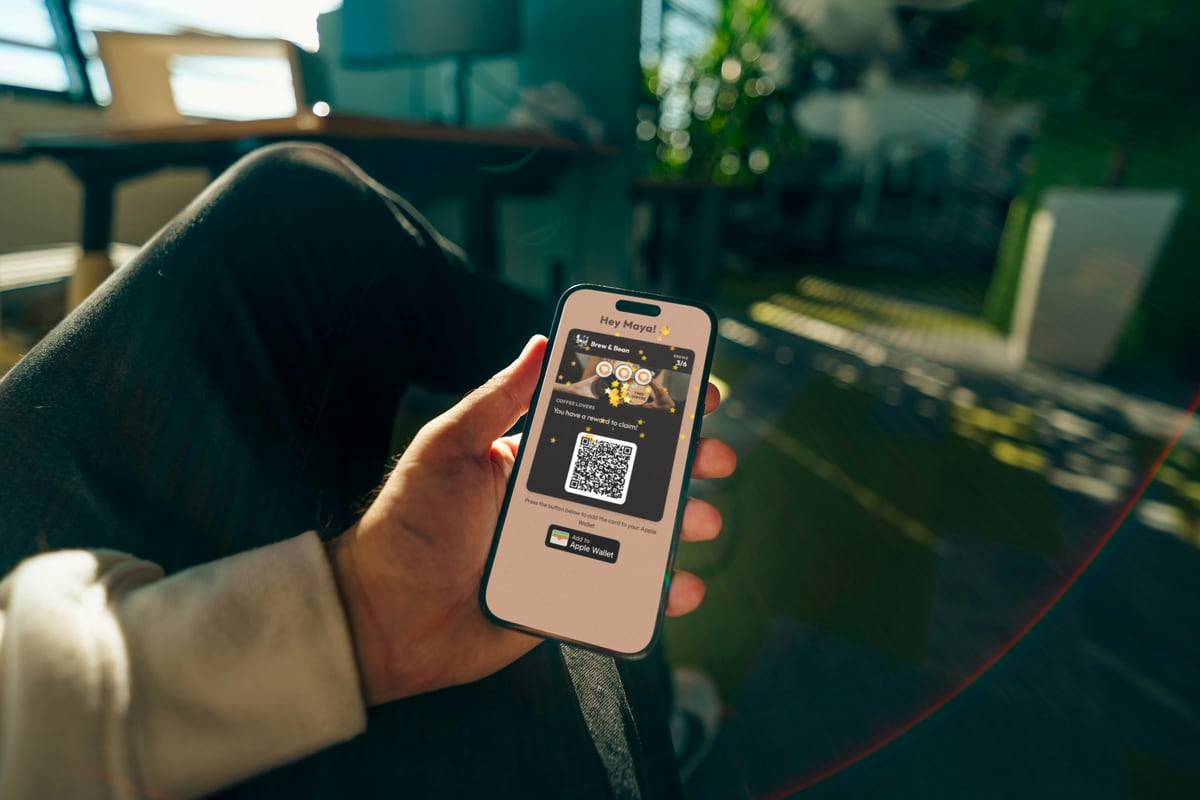





iOS 27 Apple Wallet Loyalty Cards: What Changed, What to Do
iOS 27 is out. Here's what changed for Apple Wallet loyalty cards: poster designs, Featured Actions, Create a Pass, and what you need to do (usually nothing).
Key Takeaway: iOS 27, released on September 14, 2026, gives Apple Wallet loyalty cards an optional full-screen Poster Generic design and Featured Actions tiles that open a web page. Existing cards keep working with no action needed, and a card can carry the new design and the classic one side by side, so for most businesses the right move is to do nothing.
FaveCard Team
Published September 24, 2026 · Updated September 29, 2026
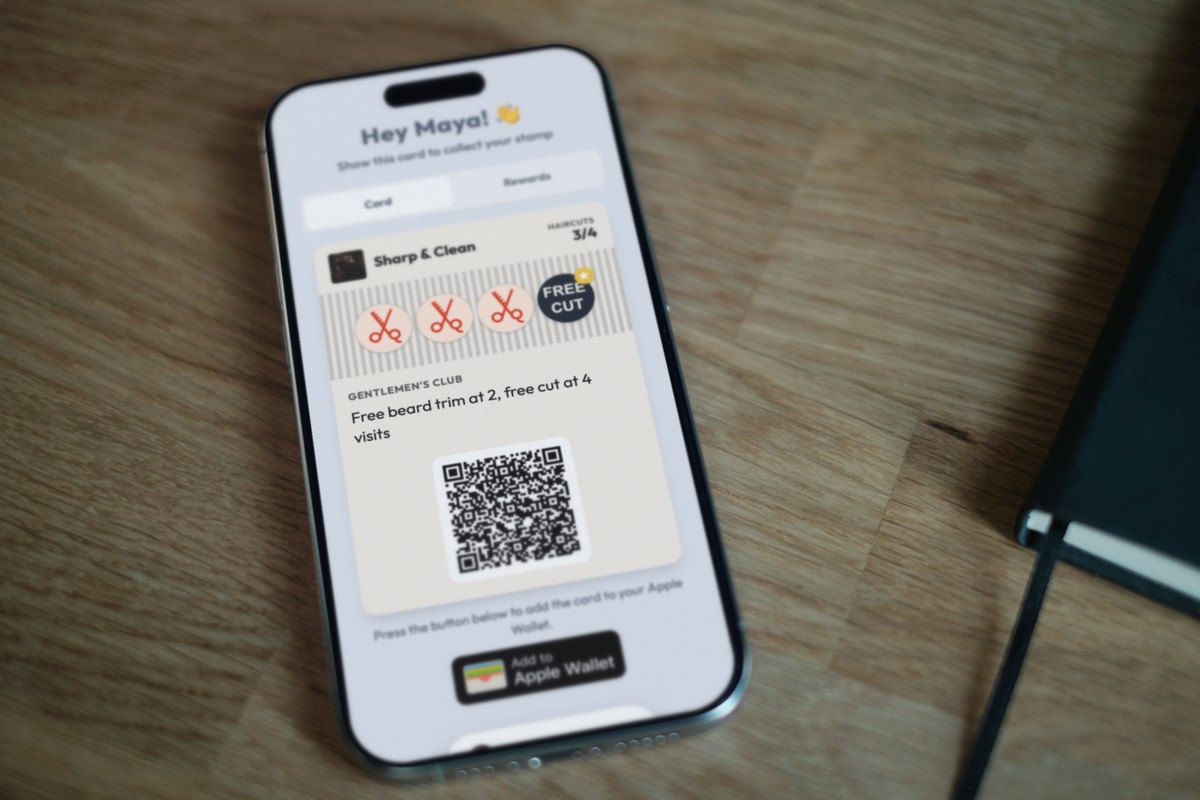
Short answer: iOS 27 is out, your loyalty card still works, and you probably don’t need to do anything. Apple released iOS 27 on September 14, 2026, and it’s the biggest change to Apple Wallet loyalty cards in years: a new full-screen card design, tappable Featured Actions, and a way for customers to scan paper cards into Wallet. Below is what each change means for an iOS 27 Apple Wallet loyalty card, whether you should redesign yours, and the one new feature that looks like a loyalty program but isn’t.
What iOS 27 changed in Apple Wallet for loyalty cards
Apple announced the date on September 9 and released iOS 27 to every compatible iPhone on Monday, September 14 (MacRumors). Here’s what changed in Wallet, and what each change means if you run a café, salon, barbershop or restaurant.
| Change | What it is | What it means for you |
|---|---|---|
| Poster Generic | A new card design for loyalty, rewards, membership and gift cards | Your card can look bolder. It’s optional. |
| Featured Actions | Interactive tiles that open a web page | A useful link can finally sit where customers see it |
| Create a Pass | Customers can scan a physical card into Wallet | Handy for them, but it’s not a loyalty program |
| Four new barcode types | EAN-13, Code 39, Codabar and ITF | Matters only if your till uses one of these |
| Pass Designer | A Mac app for designing Wallet passes | A tool for developers, not for shop owners |
| Tap to Share | A faster checkout between a customer’s iPhone and a merchant’s iPhone | A payments feature, separate from loyalty cards |
The new “poster” design
Apple’s developer page describes it plainly: “The new Poster Generic pass template lets developers easily create engaging loyalty, rewards, membership, or gift cards.” (Apple Developer) Instead of the classic layout, the card can become a bold, full-screen poster for your brand.
The catch is that it only shows on iOS 27. Apple says these enhanced passes “are available in iOS 27 and later,” so anyone who hasn’t updated sees the classic card instead.
Create a Pass and the new barcodes
iOS 27 also lets people “create custom passes in Apple Wallet by scanning physical cards, like loyalty or membership cards” (MacRumors). If the card has a barcode or QR code, Visual Intelligence can read it, and people can also add a pass by hand (MacRumors iOS 27 Wallet guide). Wallet can now also show four more barcode types: EAN-13, Code 39, Codabar and ITF. We come back to Create a Pass below, because it’s the change most likely to confuse your customers.
Pass Designer
Pass Designer is a new Mac app (it needs macOS 27) that “lets you easily design and visualize amazing passes for Apple Wallet” (Apple Developer). It’s built for the people who make Wallet cards. If a loyalty platform makes your card for you, you’ll never need to open it.
Do I need to redesign my loyalty card for iOS 27?
No. This is the question we hear most, and the answer is reassuring.
Your current card keeps working. Wallet provider PassKit puts it simply: “Existing Apple Wallet passes will continue to work. The introduction of Poster Generic does not prevent customers from using passes created with the current Apple Wallet styles.” (PassKit) Nothing breaks, nothing expires, and your customers don’t have to add the card again.
Nobody gets left behind. A card doesn’t have to choose between old and new. As PassKit explains, “a pass can contain both”: the new Poster Generic design for iOS 27 and later, and the existing design for iOS 26 and earlier. Customers who update see the new look; customers who don’t still get a working card that scans at your counter.
What about FaveCard cards? FaveCard cards use Apple’s classic loyalty card layout, and they keep working on iOS 27 exactly as before, with nothing for you or your customers to do. Stamps still land on the card after each visit, and the card still updates on its own.
When a refresh is worth it
The poster design is an option, not a deadline. If brands your customers love start using it, a flat card may look a little older next to theirs. If you’re thinking about how your card looks, these three questions matter more than which Apple template it uses:
- Can you read it at a glance? Your business name and the stamp count should be sharp against the background. A busy photo behind pale text is the most common mistake.
- Is progress obvious? A customer should see “6 of 10” without opening the card. That number is what brings them back.
- Does it look like you? Your logo and your colors, not a generic template.
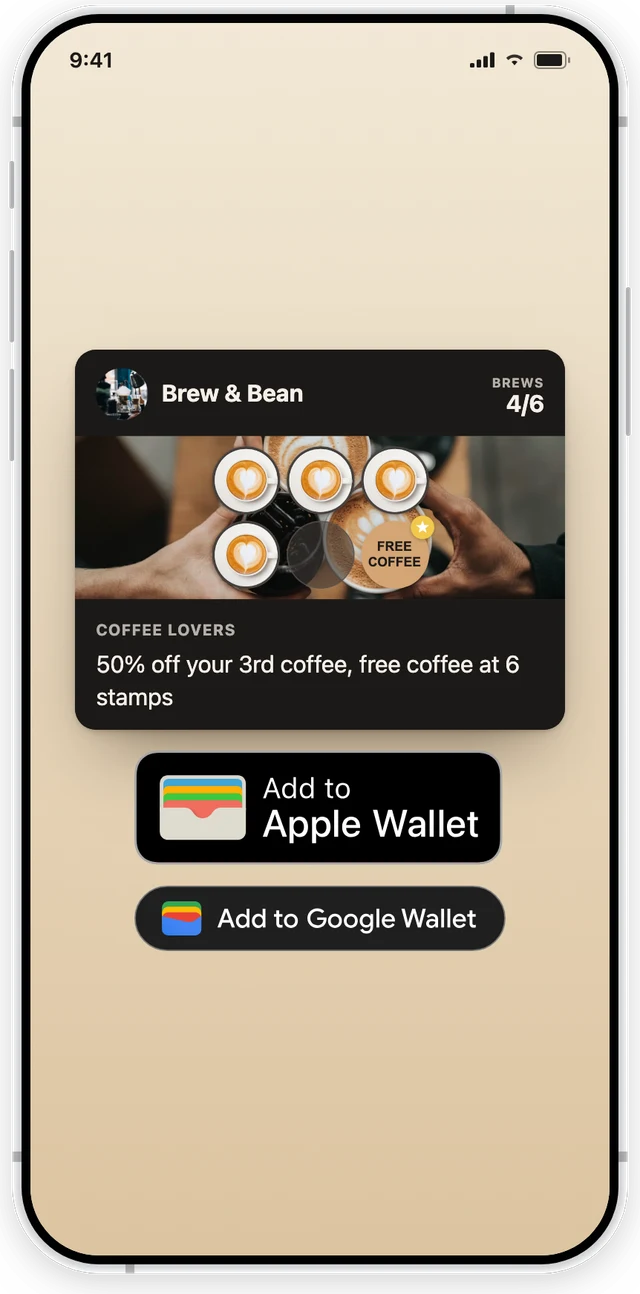
If you can answer yes to all three, your card is in good shape on any version of iOS. For more ideas, see our guide to loyalty card design.
Featured Actions, explained
Featured Actions are the quieter change, but for a loyalty card they may matter more than the new design.
Apple describes them as “interactive tiles called Featured Actions that give customers easy access to useful information through universal links to additional web pages” (Apple Developer). In plain English: a tap on the tile opens a web page chosen by whoever issued the card.
Why it matters: until now, the only place to put a link on a Wallet card was the back of the card. Customers had to open the card’s details to find it, and most never did. With iOS 27, a useful link can sit right next to the card.
How FaveCard uses it. Every FaveCard Wallet card comes with one built-in “View your card” action that opens that customer’s own card page on the web. There’s nothing for you to set up:
- On iPhones running iOS 27, the card carries it as a Featured Action, so Wallet can show it as a tile.
- On older iPhones, the same link sits on the back of the card, so it still works.
- On Android, Google Wallet shows it on the card as a “View your card” link.
It’s the same card, the same link, on every phone your customers carry.
Create a Pass: why a scanned paper card isn’t a loyalty program
Here’s the change most likely to come up at your counter. With Create a Pass, a customer can point their iPhone at a physical card with a barcode or QR code and save a copy to Wallet. It’s a genuinely handy feature for gym tags and membership cards.
But a scanned card is a copy the customer made, not a card you issued. That makes a big difference for loyalty:
- No stamps. Most paper punch cards track visits with ink stamps. Wallet can’t count them, and a scanned copy won’t collect new ones.
- No updates. You didn’t issue the pass, so you can’t change it. The card won’t show progress, a new reward, or an updated offer.
- No way to reach the customer. You can’t send a message to their phone through a card they scanned themselves.
- No customer data. You don’t learn who saved your card, who comes back, or who has gone quiet.
So if a customer shows you your paper card sitting in their Wallet, that’s a nice compliment, but it’s still a paper card. A loyalty card that you issue to Wallet is different: stamps appear after each visit (whether you add them or customers collect them by scanning a QR code on an iPad at your counter), the card updates itself, and you can see who’s coming back. We compare the two in paper vs digital loyalty cards.
Google Wallet changed too
This post is about Apple, but some of your customers are on Android, so here’s the short version. On September 10, 2026, 9to5Google reported that Google Wallet’s pass redesign was widely rolled out: “passes in Google Wallet now take up the entire screen,” and it “applies to all loyalty cards and boarding passes, including manually created ones” (9to5Google).
Just like on iPhone, existing cards keep working. FaveCard cards stay in your customers’ Google Wallet, keep collecting stamps, and don’t need to be added again.
What to do this week
For most businesses, the to-do list is short:
- Do nothing to your card. It keeps working on iOS 27 and on older iPhones.
- Check the basics. Can customers read your card at a glance, and see their progress without opening it?
- Be ready for the question. If a customer asks whether they can just scan your paper card into Wallet, the honest answer is yes, but it won’t collect stamps. Offer them the real card instead: a QR code sign at the counter lets them save it in a few seconds.
If you’re still on paper, this is a good moment to switch. With FaveCard you can create a loyalty card in about 5 minutes, and your customers save it to their phone with no app to download. Native Apple Wallet and Google Wallet cards are part of the Pro and Business plans. Every new account starts with premium tools, Wallet cards included, until the first 30 customers are on the card. On the Free plan, customers get a digital loyalty card on their phone that opens in the browser. See pricing for the current plans. Once your card is live, our guide on how to promote a loyalty program covers signs, sizes and posts that get customers to join.
Want the bigger picture on why Wallet cards beat asking customers to download an app? Read Apple Wallet loyalty cards vs loyalty apps and why the wallet is becoming the loyalty platform.
Frequently Asked Questions
Do I need to update my Apple Wallet loyalty card for iOS 27?
No. Existing Apple Wallet passes keep working on iOS 27, and customers don't need to re-add their card. Apple's new Poster Generic design is optional. A card can carry the new design for iOS 27 and the classic design for older iPhones at the same time, so nobody is left with a broken card.
When did iOS 27 come out?
Apple announced the release date on September 9, 2026, and released iOS 27 to all compatible iPhones on Monday, September 14, 2026. The new Wallet features only show on iPhones that have installed the update. Customers on older versions keep seeing the classic card layout.
What are Featured Actions in Apple Wallet?
Featured Actions are interactive tiles that Apple Wallet shows with a pass in iOS 27. Each one opens a web page the business chooses, such as the customer's rewards. Before iOS 27, a link on a loyalty card could only sit on the back of the card, where few customers ever looked.
Can customers scan my paper loyalty card into Apple Wallet with iOS 27?
Yes, with the new Create a Pass feature, a customer can scan a physical card with a barcode or QR code into Wallet, or add one by hand. But it's a copy the customer made, not a card you issued. It won't collect stamps, you can't update it or message the customer through it, and you don't learn who they are.
Do FaveCard loyalty cards work on iOS 27?
Yes. FaveCard cards keep working on iOS 27 with nothing for you or your customers to do. Every FaveCard Apple Wallet card also carries one built-in "View your card" action that opens the customer's own card page. The card includes it as a Featured Action, so iPhones on iOS 27 can show it as a tile, and on older iPhones the same link sits on the back of the card.
Did Google Wallet change too?
Yes. In September 2026 Google widely rolled out a redesign where passes, including loyalty cards, take up the whole screen. Existing loyalty cards, FaveCard cards included, keep working in Google Wallet, and your customers don't need to add them again.