




Can You Send Push Notifications Without an App?
Yes, if customers save your loyalty card to Apple or Google Wallet. What the lock screen shows, the real limits, and a slow-day message to send today.
Key Takeaway:
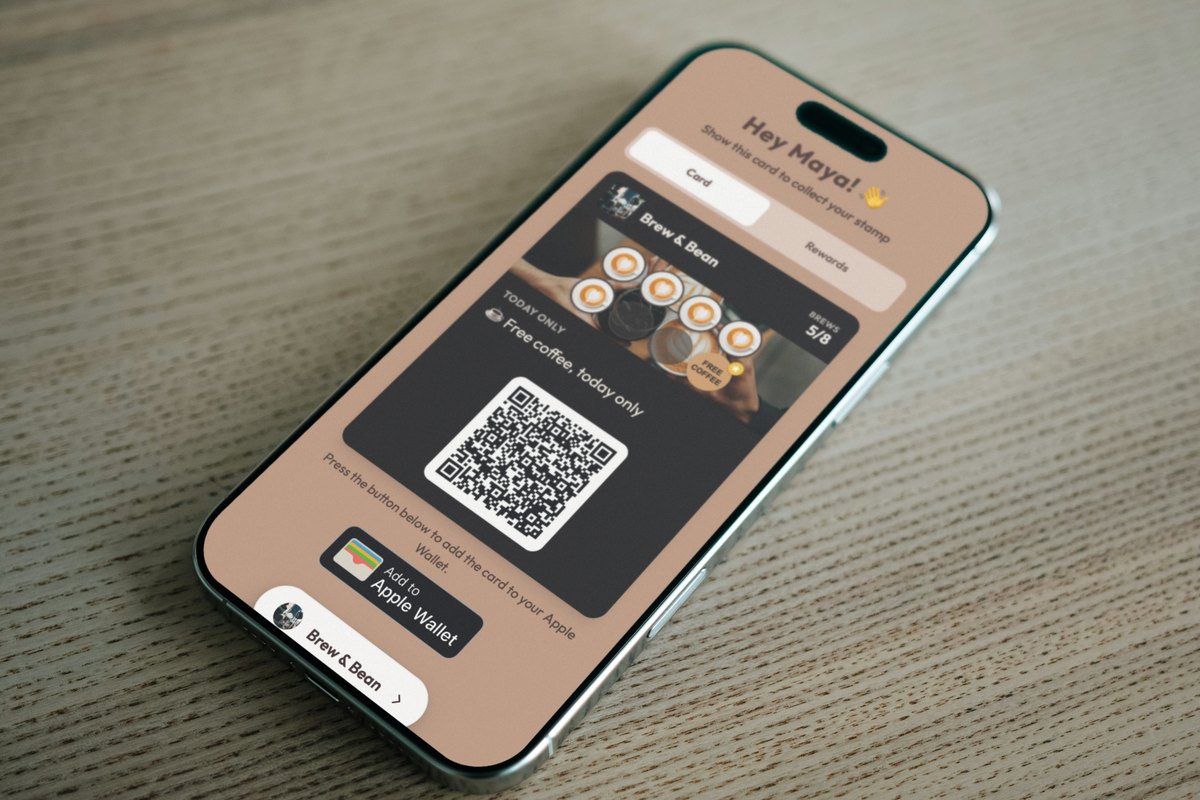
Yes. A loyalty card saved in Apple Wallet or Google Wallet can show your message on the lock screen, with no app and no phone number. On FaveCard that happens when you send a campaign (Business plan and the free trial): one notification of up to 80 characters, plus a line on the card that stays until the customer's next visit or the end of the campaign. Google allows 3 alerts per card in 24 hours, customers can switch alerts off, and people who keep the card only in their browser see the new line but get no alert.
Last updated: October 2026
Yes. If a customer has saved your loyalty card in Apple Wallet or Google Wallet, you can send a short message that pops up on their lock screen. They don’t need an app, and you don’t need their phone number. The saved card is the channel.
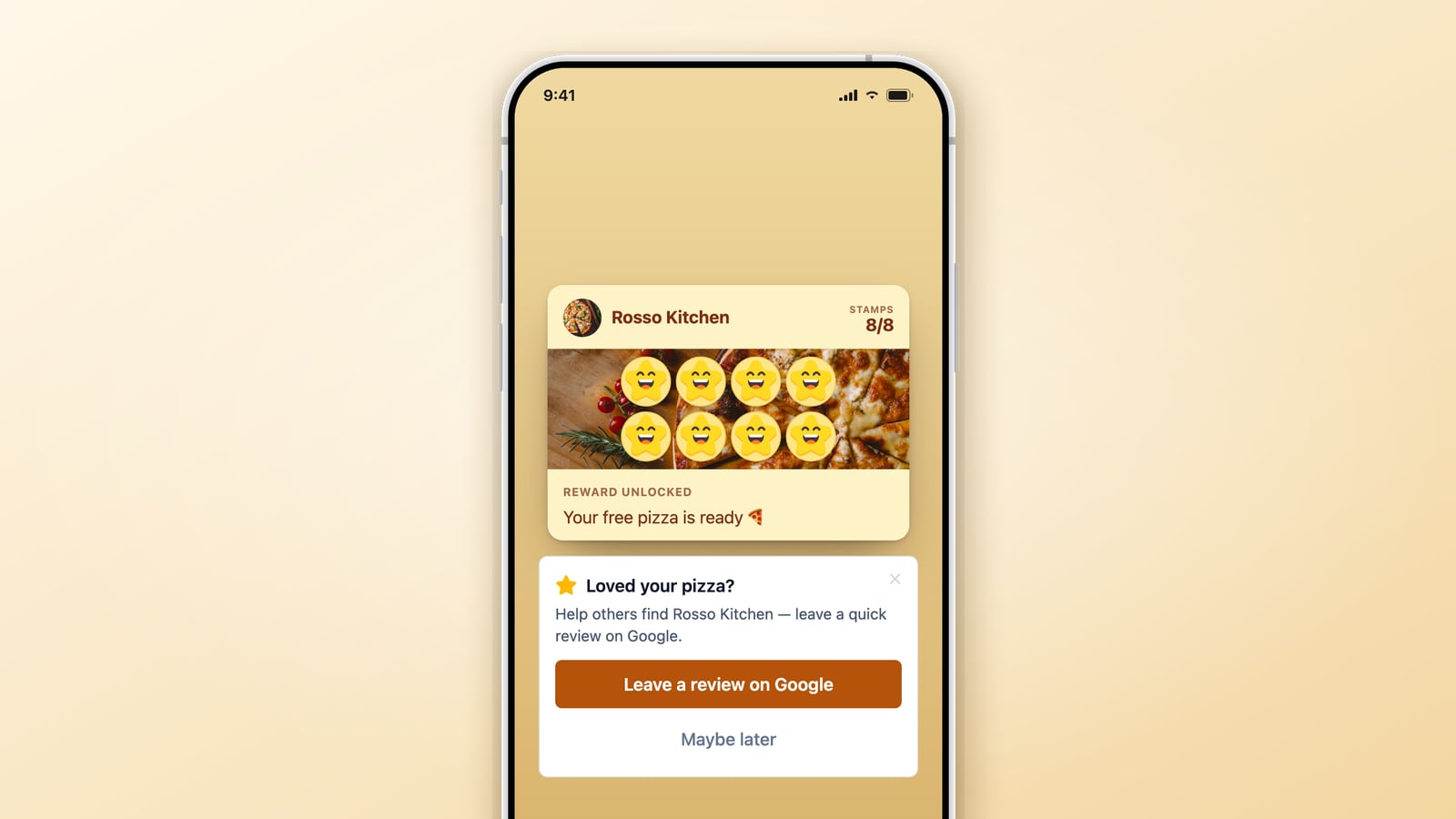
Its limits shape how you should use it. On FaveCard a message goes out as a campaign: one notification of up to 80 characters, plus a line on the card that stays until the customer’s next visit or until the campaign ends. Google Wallet shows at most three alerts per card in 24 hours. Customers can switch notifications off. And someone who keeps the card only in their phone’s browser sees the new line when they open it, but gets no alert.
Here is how it works, what customers see, the limits in one table, and a slow-day message you can send today.
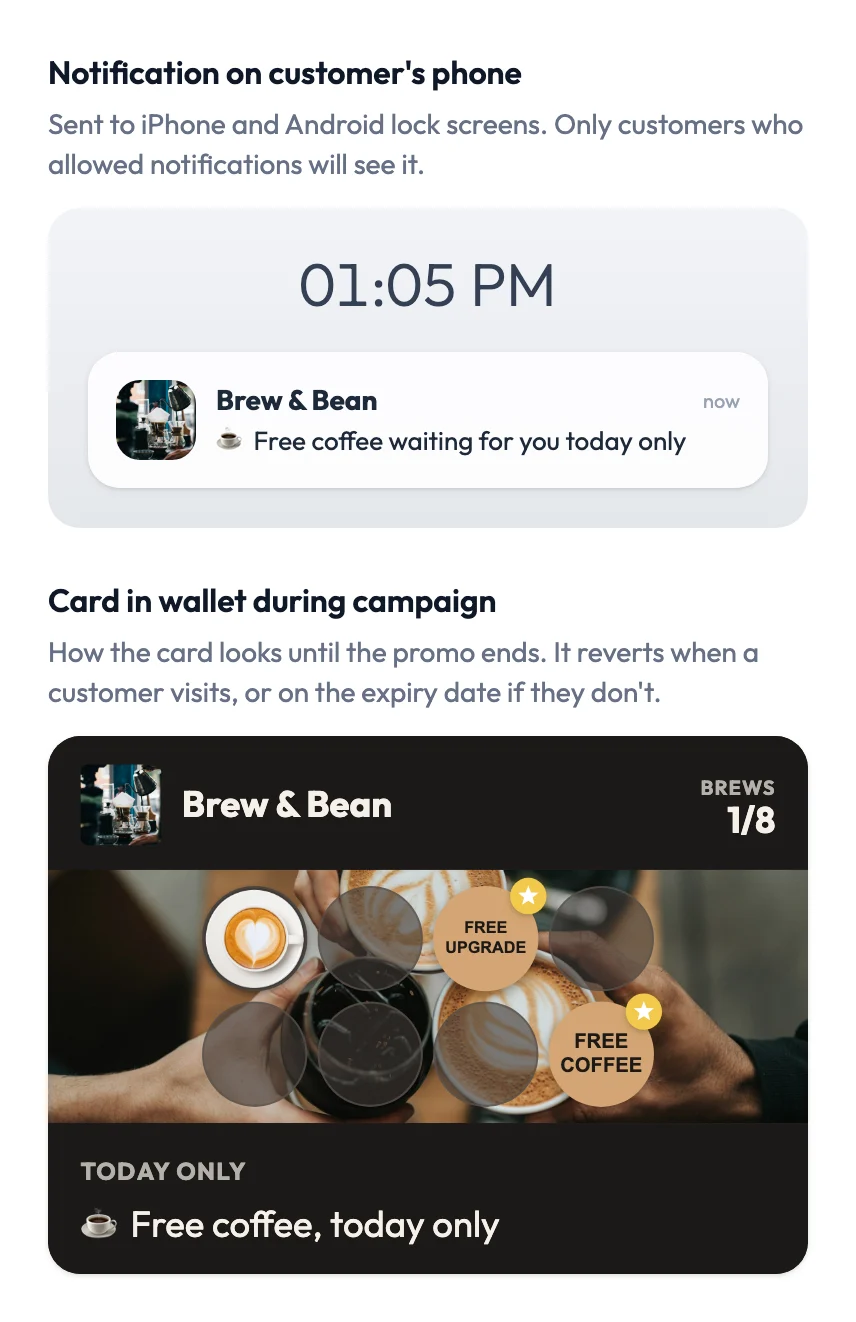
The Slow Day template in FaveCard’s campaign editor, with its own default wording. It’s the dashboard’s preview, not a screenshot of a customer’s phone.
How can a business send a notification without an app?
Through the Wallet pass. When a customer taps “Add to Apple Wallet” or “Add to Google Wallet”, the phone keeps the card and accepts updates to it from the business. Most updates are silent: a new stamp just appears. An update can also include a message, and that message is what appears on the lock screen.
Apple’s pass format has a field for the alert text. Its documentation says “you need to provide a value for the system to show a change notification” (Apple Developer). No text, no alert. Google attaches a message to the card instead, and its developer page sets two conditions: “You may send a maximum of 3 messages that trigger a push notification in a 24 hour period”, and “Users must have notifications enabled for their passes” (Google for Developers).
On FaveCard, your campaigns trigger that alert. In Apple Wallet, so do automatic messages such as the birthday greeting; in Google Wallet they update the card without an alert. Stamps and rewards update the card quietly. For what else happens to a saved card, see our Apple Wallet loyalty card guide; this post is about the message.
What does the customer see?
Two things, and you write both.
- The notification, up to 80 characters. The editor previews it under your business name, with your logo as the icon. Apple needs a square icon here. If your logo is rectangular or missing, FaveCard warns you that its own icon will show instead, so fix that before your first campaign.
- The card, during the campaign. A line of up to 60 characters replaces the reward text, and a header of up to 30 characters (TODAY ONLY, say) replaces the card’s usual label. You can also add a banner image or change how the stamps look for the length of the campaign.
The line on the card is the reminder that stays. Even if a customer swipes the notification away, the offer is still on the card in Wallet, and on screen when they show it at the counter. The line disappears from a customer’s card when they collect their next stamp or a reward. Customers who don’t come in keep the offer on their card until the campaign ends. It disappears silently, without a second notification.
One exception: if a customer has a reward waiting, their card keeps showing the reward instead of your line. The editor notes this under the header field: “Not applied when a customer has a reward ready.”
What are the limits?
These rules, from FaveCard’s code and from Apple’s and Google’s documentation, decide who gets your message and when.
| Limit | What it means for you |
|---|---|
| One campaign at a time | Campaigns run one at a time, so choose the length with your next idea in mind. |
| 1 hour to 30 days | Each template offers shortcuts (Slow Day: end of today, tomorrow or 3 days), or you can type any end time between 1 hour and 30 days away. |
| 80, 60 and 30 characters | Notification, card line and card header, emoji included. |
| 4 campaigns a month, one a day | On the Business plan and during the free trial. |
| Google: 3 alerts per card per 24 hours | Google’s rule. After the third, FaveCard still updates the card, just without an alert. |
| Notifications switched off | The customer’s choice. The card still changes; the lock screen stays dark. |
| Card only in the browser | No Wallet pass, no alert. The new line shows when they open their card page. |
The last three rows determine how many people actually get your message. A campaign lands on the lock screens of customers who saved your card to Wallet and left notifications on. Everyone else sees the new line only if they open the card. If regulars use the browser card, ask them to tap the “Add to Apple Wallet” or “Add to Google Wallet” button at their next visit.
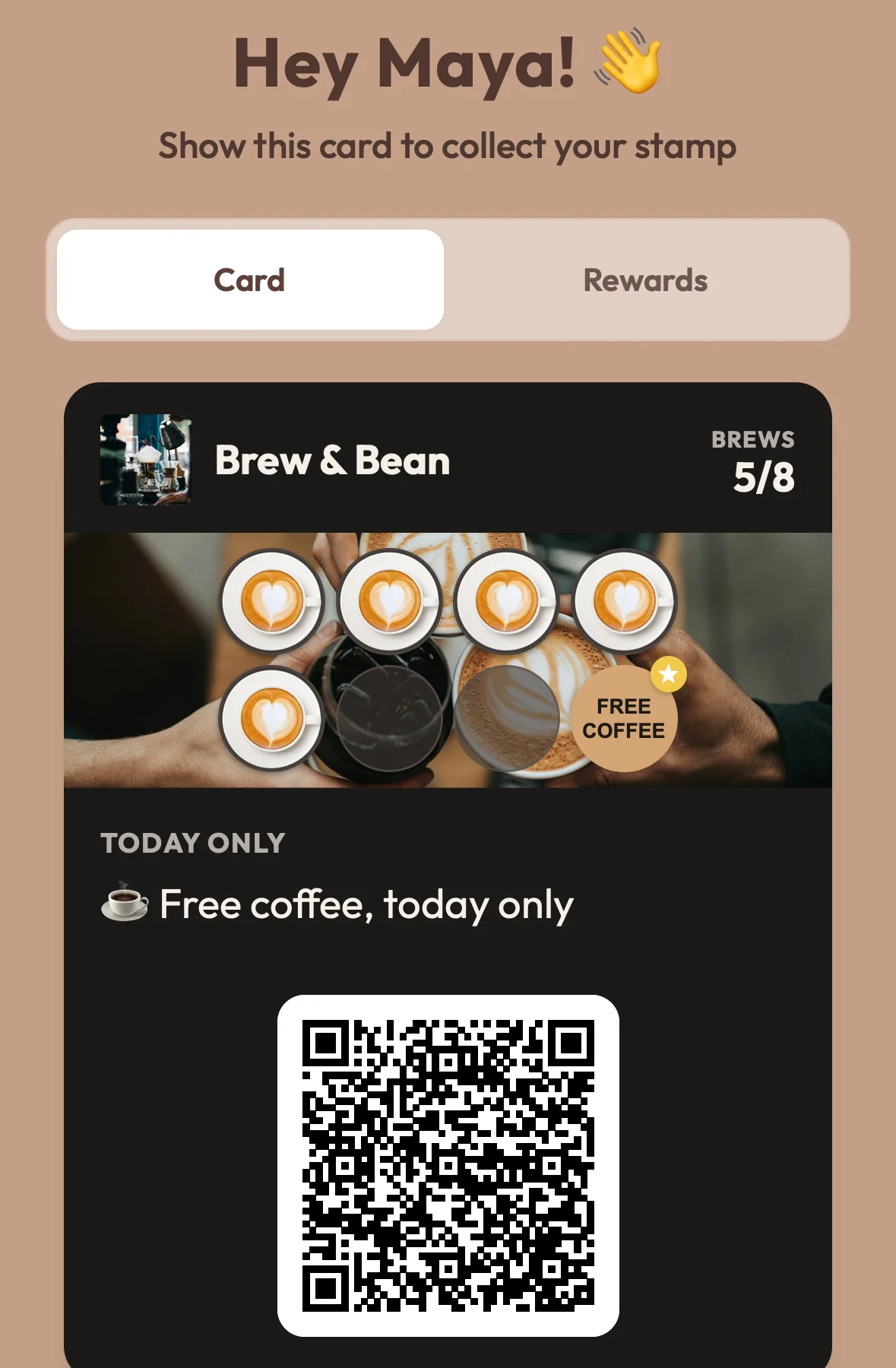
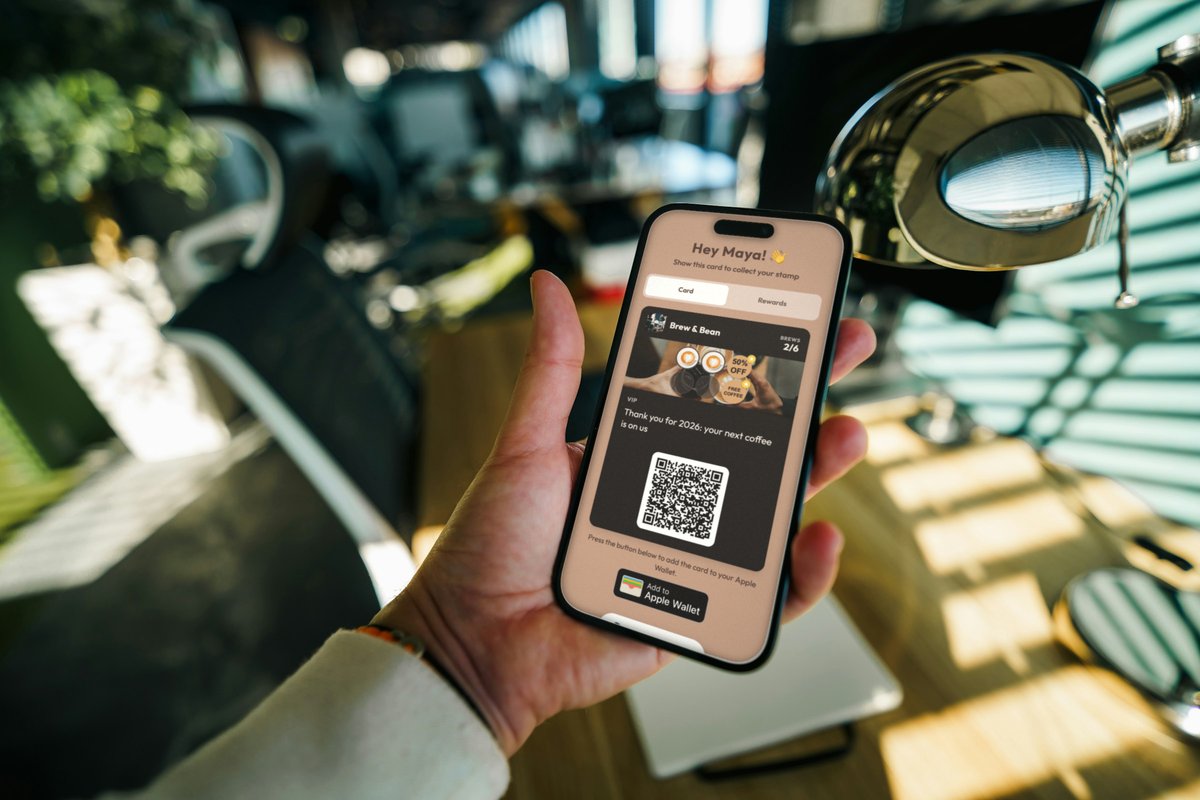
The same campaign on a card that lives in the phone’s browser: the line is there when Maya opens the page, but her phone never buzzed.
Some vendors promise “unlimited push notifications” (Perkstar, for one). That describes what you pay for, not what arrives. Google’s cap, the customer’s settings and whether the card is in Wallet at all apply to every platform, including ours.
Why not just text your loyalty members?
It’s a common question on seller forums. One Square Seller Community thread from January 2022 is titled “Why is loyalty marketing limited to email, when we collect phone numbers?” (Square Community). In January 2024 another seller wrote: “I’d like to notify loyalty customers that we have a promotion for double loyalty points. Is there a way to do this automatically or manually?” The moderator pointed to email campaigns, and the seller came back to say they had only phone numbers (Square Community). Square’s options may have changed since, so check its current documentation.
Texting works, but it needs phone numbers, consent to marketing texts, and usually a fee for every message. A Wallet card needs neither, as long as the customer has saved it to Wallet.
| Text message | Wallet card message | |
|---|---|---|
| You need | A phone number and an opt-in | The card saved in Apple or Google Wallet |
| It shows up | In the Messages app | On the lock screen, then on the card |
| Afterwards | Stays in the thread | The card line stays until the next visit or the end date |
| Per-message cost | Usually yes | None on FaveCard |
You don’t need a phone number for the card itself either: FaveCard’s sign-up asks for an email and a first name, and the rest is optional.
How do you fill a slow day with one Wallet message?
Send a Slow Day campaign on the morning of your quiet day, with one specific, free reason to come in before closing. Tell your staff first. Here is the whole thing, step by step, for a café with an 8-stamp card and a free coffee at stamp 8.
- Pick the gap, such as Tuesday from 2 to 4 pm. Send it while people can still plan a visit: late morning, not at 3 pm when the shop is already quiet.
- Open the Slow Day template. Its default notification is ”☕ Free coffee waiting for you today only”, and the card shows ”☕ Free coffee, today only” under the header TODAY ONLY. The same page suggests others, such as ”🎁 Drop by today for a bonus stamp on us” and ”🥐 Free pastry with any drink, today only”.
- Choose an offer you can give everyone who comes. A free coffee for every regular who comes in gets expensive fast. A bonus stamp costs far less: on an 8-stamp card, one stamp is an eighth of the free coffee, and it only goes to people who walk in. A free pastry with a paid drink works too. FaveCard’s card editor gives the same advice: “‘Free’ rewards work better than discounts.”
- Send it to “All active” (everyone who has your card), or pick customers by hand.
- Keep the duration at “End of today”. The card returns to its usual text after the customer’s next stamp, or when the day ends.
- Brief your staff before you press Send. Your staff give the extra stamp, or the pastry, when the customer shows the offer.
- Check the result the next day. The campaign page shows how many customers got the message. To see who came in, sort your customer list by last stamp, or count yesterday’s stamps in your activity history and compare them with the same day last week.
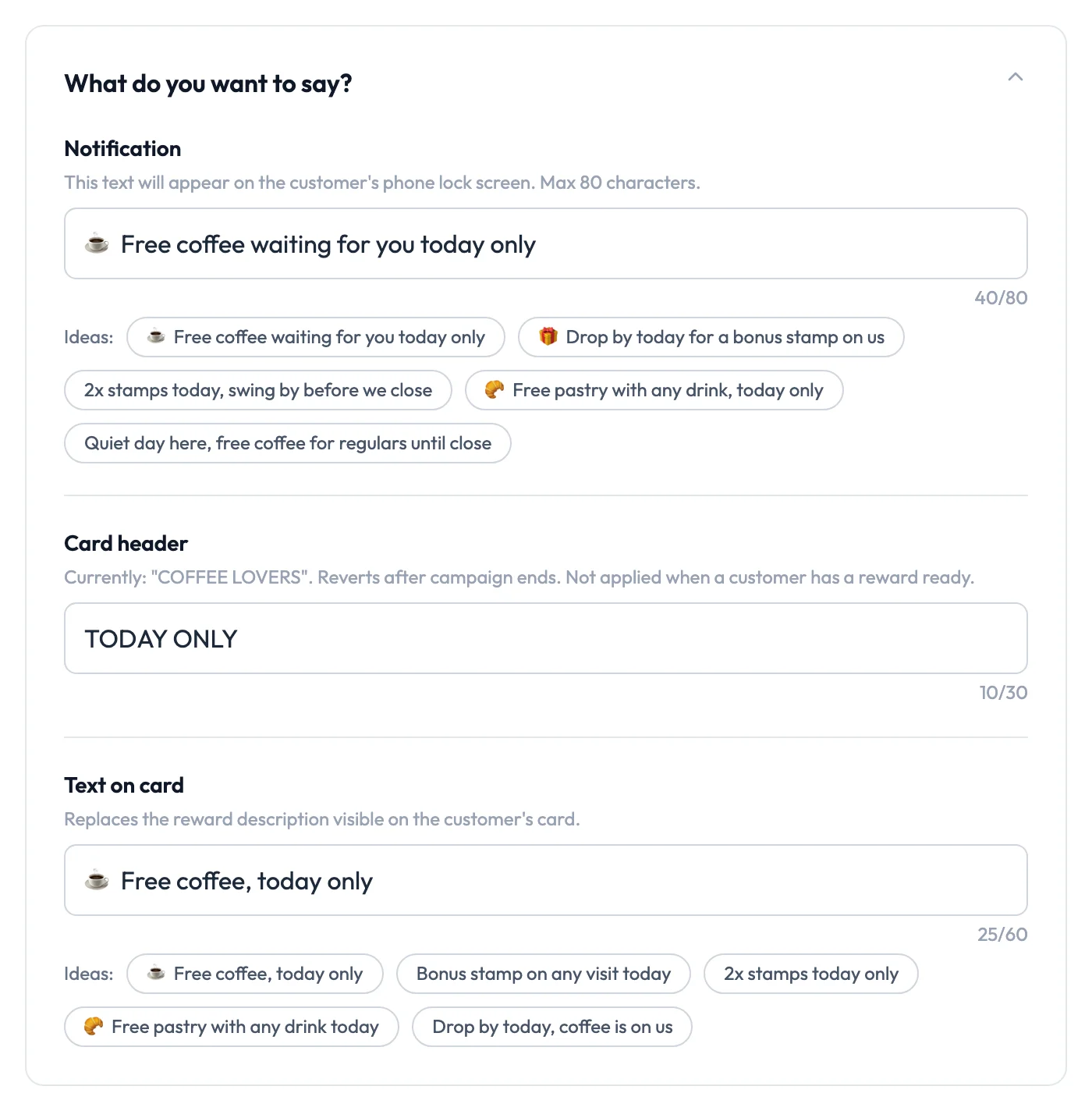
The three fields you write, with their character counters and the template’s own suggestions.
Which template fits which quiet hour?
Slow Day for a whole quiet day, Happy Hour for a set window, Last Chance for the final hours before close. Win Them Back is for a different job: regulars who stopped coming.
| Template | Default notification | How long it can run |
|---|---|---|
| Slow Day | ☕ Free coffee waiting for you today only | End of today, tomorrow or 3 days |
| Happy Hour | 🍹 Happy hour until (your end time): 2-for-1 drinks, stop in! | Until 6, 7, 8 or 9 pm, or the next 2, 3 or 4 hours |
| Last Chance | ⏳ Last 2 hours: 50% off everything, grab it before close! | The next 2, 3, 4 or 6 hours |
| Win Them Back | 💛 We miss you, free coffee on your next visit this week | 3, 7 or 14 days |
Slow Day goes to everyone who has the card or to customers you pick. Happy Hour and Last Chance can also go only to customers whose last stamp is older than a number of days you choose. Win Them Back goes to customers you pick.
Two of those defaults are discounts. If you’d rather not run a discount, replace it with a free extra or a bonus stamp.
To run double stamps for a set window, send a Happy Hour campaign at 1 pm set to the next 2 hours, and have staff give two stamps instead of one. Square sellers asked for this on their forum between 2018 and 2020: one wanted “to offer double rewards or added benefits for coming in during a set time daily”, another a “happy hour period 1-3pm where you earn 2x the points” (Square Community). Square Loyalty has since added a “Slow hours” promotion with extra points (Square Support).
Customers who have drifted away usually need a different offer and different timing. Our guides on bringing back inactive customers and getting repeat customers cover Win Them Back and when to send it.
What should the message say?
One offer, one deadline, and the name of the thing. “Free pastry with any drink, today only” gives a reason and a time limit. “Come visit us!” gives neither. The format adds a few rules:
- The notification appears under your business name, so don’t spend characters repeating it.
- Put the offer on the card line as well. The notification is gone once read; the card line is what the customer shows at the till.
- Emoji count toward the 80 characters, and one is plenty.
Here is the same idea for other kinds of business:
- Bakery: ”🥐 Quiet afternoon here: free cookie with any loaf until close”
- Barber: “Slow Tuesday: walk in before 4 for a bonus stamp on your card”
- Salon: “Walk-ins welcome until 5 today, bonus stamp with any cut”
- Nail studio: “Free nail art with any full set, today only”
Cafés have more options in our list of coffee shop promotion ideas.
How often can you send one without annoying people?
Only when you have a real reason to write: a quiet day to fill, something new, a regular you miss. Some pacing is built in: campaigns run one at a time, Google stops alerting after three a day per card, and both the Business plan and the trial allow four a month. Send too often, though, and you risk customers switching off your notifications; after that, your offers only show when they open the card.
There’s no single right frequency. Before you press Send, ask: will regulars be glad to get this, and did your last message bring people in? Your customer list, sorted by last stamp, answers the second. If a weekly slow-day message stops bringing people in, send it less often, or change the offer.
Which plan do you need?
| What | Plan |
|---|---|
| The card in the phone’s browser, QR stamping in the staff app | Every plan, including Free |
| Apple Wallet and Google Wallet passes | Pro and Business |
| Campaigns (Slow Day, Happy Hour, Last Chance, Win Them Back and the others) and the birthday message | Business, and the free trial |
Campaigns are part of the Business plan and the free trial; Pro includes the Wallet card. The campaigns page shows the templates, and current prices are on the pricing page.
Want to see the Slow Day editor with your own card? Create your card on the free plan first, or compare plans.
Frequently Asked Questions
Can you send push notifications without an app?
Yes, through a Wallet pass. When a customer saves a loyalty card to Apple Wallet or Google Wallet, the business can update the card and attach a short message to the update, which the phone shows on the lock screen. The customer installs nothing and gives no phone number. It only reaches people who saved the card to Wallet and left notifications on.
Why didn't a customer get my notification?
It's usually one of four reasons. They keep the card in their phone's browser instead of Wallet, so there is no pass to receive the alert. They switched notifications off for your card. On Android, the card already had 3 alerts in the last 24 hours, which is Google's limit. Or, on FaveCard, their birthday offer is on the card at that moment, which takes priority over a campaign.
Does every stamp send a notification?
No. Stamps and rewards update the saved card silently, and customers see them the next time they open the card. On FaveCard the lock-screen alert comes from campaigns and, in Apple Wallet, also from automatic messages such as the birthday greeting.
How many campaigns can I send?
On the Business plan you can send up to 4 campaigns a month, one a day, the same as during the free trial. One campaign runs at a time. Separately, Google Wallet shows at most 3 alerts per card in 24 hours; after that the card still changes, without an alert.
Does it work the same on iPhone and Android?
Almost. Both show the notification and the new line on the card. Google enforces the 3-alerts-per-day limit and controls how the alert looks on an Android lock screen. On a paid FaveCard plan, iPhone users get an Add to Apple Wallet button and Android users an Add to Google Wallet button.