iPad Kiosk Mode: Set Up a Tablet at Your Counter
How to put an iPad or Android tablet in kiosk mode for your shop: Guided Access and app pinning step by step, where to put it, and what to run on it.
Key Takeaway: Any iPad can become a counter kiosk for free with Guided Access, and most Android tablets can with app pinning. Lock the tablet to one app with a passcode, put it next to the register on a stand with power, keep it on Wi-Fi, and run a loyalty or sign-up screen on it so customers can join and collect stamps while your staff keep serving.
FaveCard Team
Published September 24, 2026 · Updated September 24, 2026
Last updated: September 2026
iPad kiosk mode is what most people call Guided Access: a free setting, built into every iPad, that locks the tablet to one app until someone enters a passcode. Android tablets have their own version, called app pinning. Either one turns a spare tablet into a counter kiosk that customers can use and can’t wander out of.
This guide covers how to switch it on, step by step, where to put the tablet, how to keep it running all day, and what to show on it. The last part shows how a loyalty kiosk works in practice, using FaveCard’s as the example.
The short answer:
- iPad: Settings, then Accessibility, then Guided Access. Turn it on and set a passcode.
- Android: Settings, then Security, then App pinning. Turn it on, with the PIN required to unpin.
- Open the app you want customers to use, then start the lock: triple-click the top button on an iPad, or pin the app on Android.
- Put the tablet next to the register on a stand, plugged in and on Wi-Fi.
- Run something customers want to tap: a loyalty sign-up, a check-in or a feedback screen.
What kiosk mode actually does
A kiosk-mode tablet does one job. Customers can’t open the browser, read your email or change the settings, and closing the app needs your passcode. That is the whole point: the tablet sits on the counter unsupervised while your staff get on with serving.
You don’t need special hardware or a kiosk subscription for a single tablet. Everything below uses settings that are already on the device.
How to put an iPad in kiosk mode (Guided Access)
These are the steps from Apple’s Guided Access guide:
- Turn it on. Open Settings, tap Accessibility, tap Guided Access and switch it on.
- Set a passcode. In Passcode Settings, set a Guided Access passcode. You can also allow Face ID or Touch ID to end a session. Use a code your staff know and your customers don’t see you type.
- Check Display Auto-Lock. In the same menu, Display Auto-Lock sets how quickly the screen locks during a session. For a counter kiosk you want the screen to stay on while the shop is open.
- Open the app you want to lock the iPad to.
- Triple-click the top button (or the Home button on older iPads) and tap Start.
To end the session, triple-click the same button, enter the passcode (or use Face ID or Touch ID) and tap End.
Before you tap Start, the Options screen lets you switch off the buttons you don’t want touched: the side or top button, the volume buttons, motion, and the on-screen keyboard. You can also circle any area of the screen you want to ignore taps on.
How to put an Android tablet in kiosk mode (app pinning)
Android calls it app pinning. The path depends on the manufacturer, so treat these steps as a guide and look for “App pinning” in the search box of your Settings app if the menus differ. From Google’s Android help:
- Turn it on. Open Settings, tap Security (or Security & location), then Advanced, then App pinning, and switch it on.
- Require your PIN to unpin. With app pinning on, Android asks for your PIN, pattern or password before the app can be unpinned. Make sure the tablet has a screen lock set, or anyone can unpin it.
- Pin the app. Open the app, go to the Overview screen (the app switcher), tap the app’s icon and tap Pin.
To unpin, use the gesture or buttons your device uses (for gesture navigation, swipe up and hold) and enter your PIN.
Where to put the tablet
A kiosk only works if customers see it at the moment they have a reason to use it. That is almost always at the register.
- Next to the card reader or register. Customers are standing still with their phone already out. A tablet by the door gets walked past.
- On a stand, angled up. A flat tablet on the counter reflects the ceiling lights and is hard to read. A stand angled towards the customer fixes both.
- Within arm’s reach. If the tablet shows a QR code, customers will scan it from about half a meter to a meter away. Our QR size guide explains why code size matters at that distance.
- Plugged in. A tablet running all day with the screen on will drain its battery. Run the cable through the stand or under the counter so it can’t be pulled.
- Out of direct sun. A screen in direct sunlight is hard to read, and a tablet in a sunny window can get too hot.
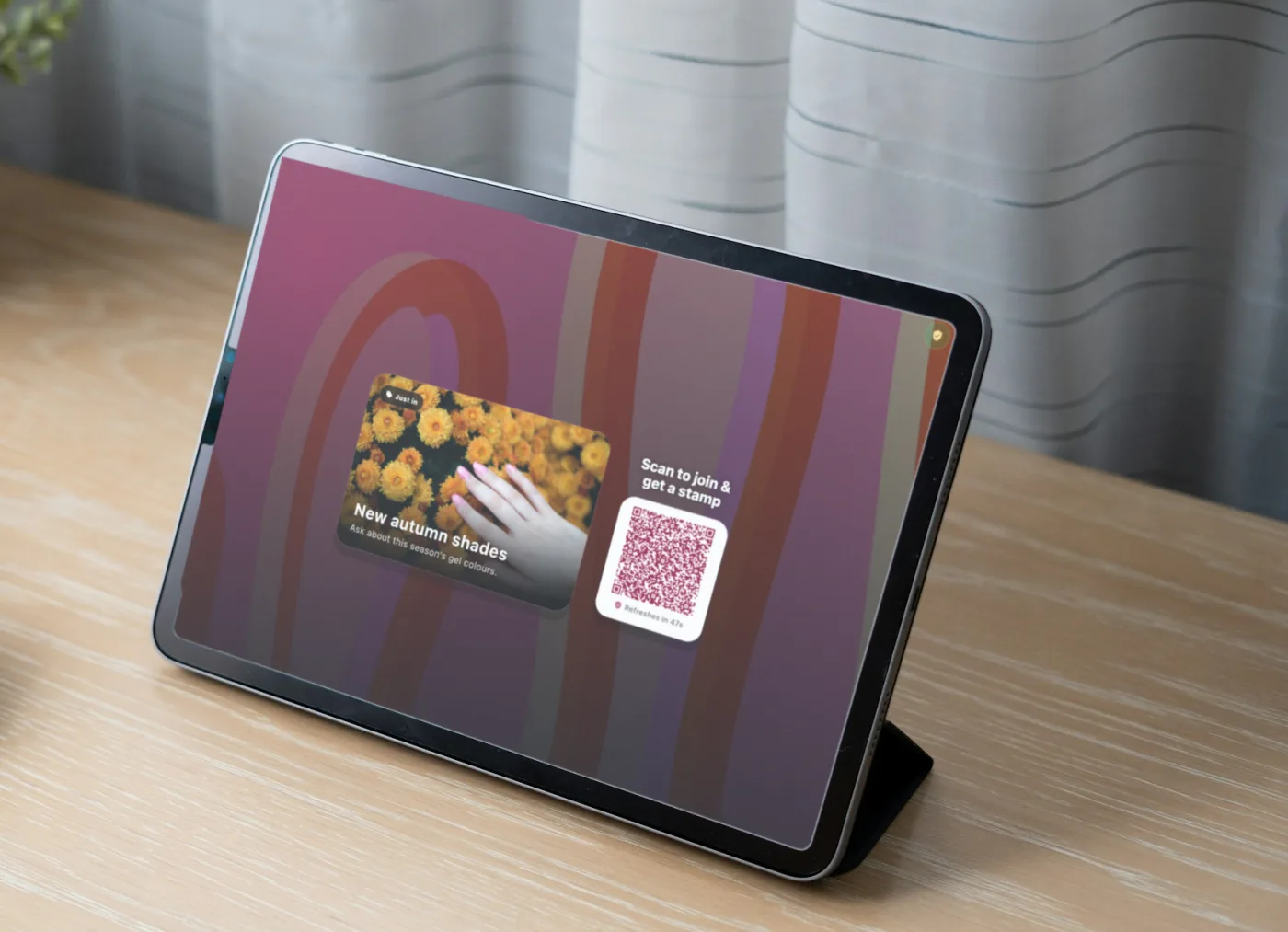
Illustration: a real FaveCard kiosk screen placed in a stock photo of a salon desk.
What to run on a counter kiosk
A kiosk earns its space when it does something your staff would otherwise have to do by hand. The common jobs for a small business:
| Job | What the customer does | Good for |
|---|---|---|
| Loyalty sign-up and stamps | Scans a code to join and collect a stamp | Cafés, bakeries, salons, barbers |
| Check-in or waitlist | Adds their name and gets a text when it’s their turn | Barbers, nail salons, clinics |
| Feedback | Rates the visit before they leave | Any business that wants reviews |
| Menu or catalogue | Browses what you sell | Takeaway counters, shops |
Pick one. A kiosk that tries to do three things turns into a menu the customer has to read, and the queue behind them waits.
Keep a self-service loyalty kiosk honest
The worry with letting customers stamp their own card is obvious: what stops someone from photographing the code and stamping themselves ten times from home? A well-built loyalty kiosk answers that with three layers:
- A code that expires and works once. The QR code on screen should change regularly and stop working after it has been used, so a photo or screenshot can’t be passed around.
- A daily limit per customer. Even if someone does scan twice, they can’t collect more than a set number of stamps in a day.
- A cooldown between stamps. A short wait between stamps stops rapid repeat scans.
It is worth checking all three before you choose a kiosk app, because a loyalty program that can be gamed stops being worth running. For the paper-card side, and for staff who stamp cards for friends, see how to stop stamp card cheating.
How the FaveCard kiosk works
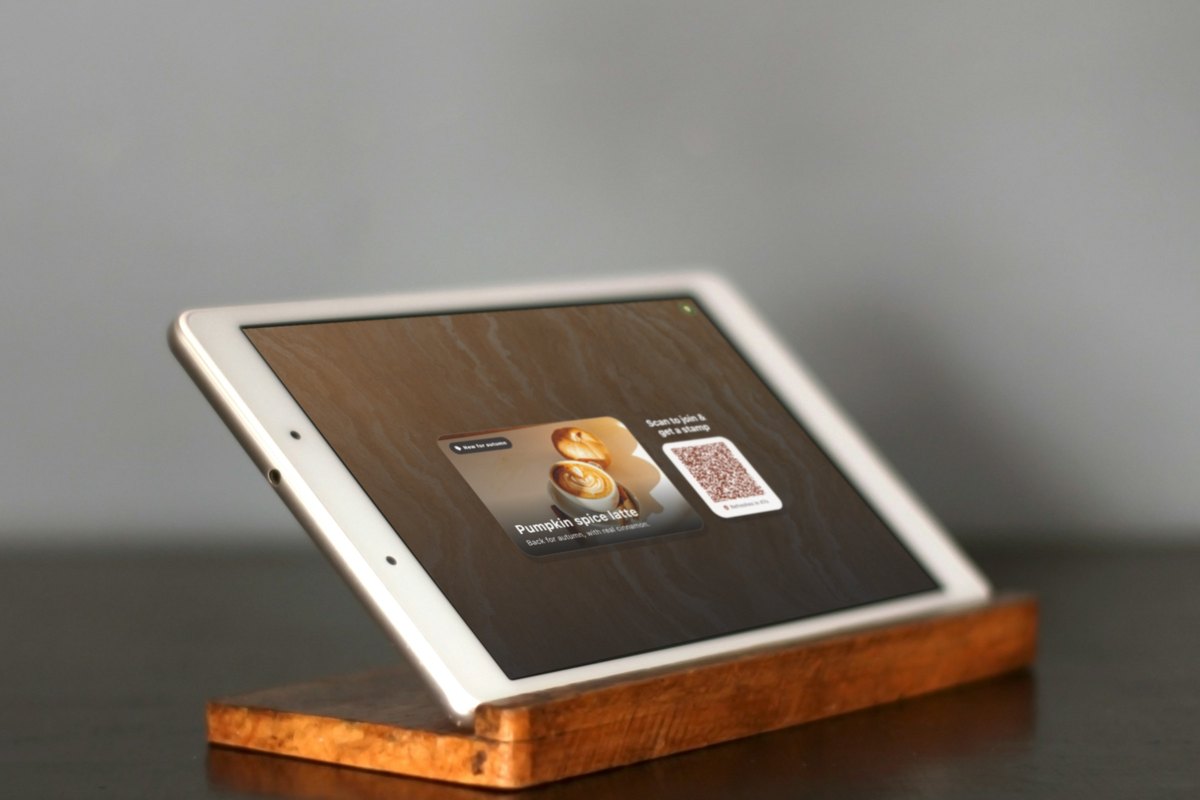
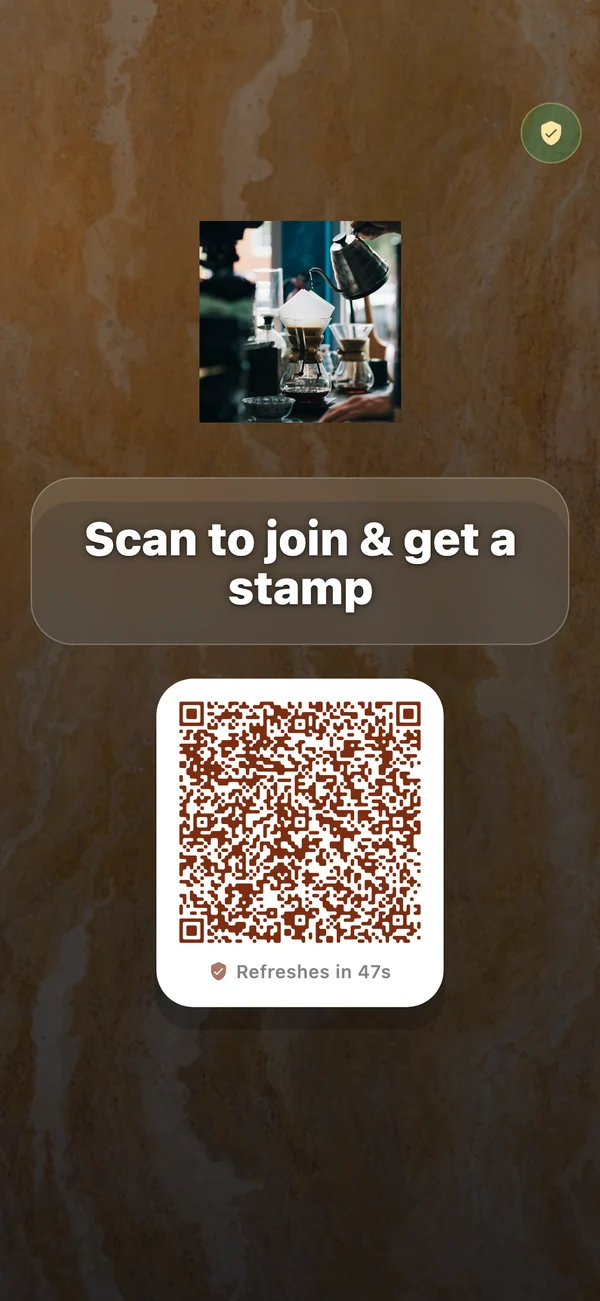
FaveCard’s kiosk mode runs in the FaveCard app on an iPad, an Android tablet or a spare phone. Put the device in Guided Access or app pinning as above, and the app shows a green shield and hides its exit button once the device is locked.
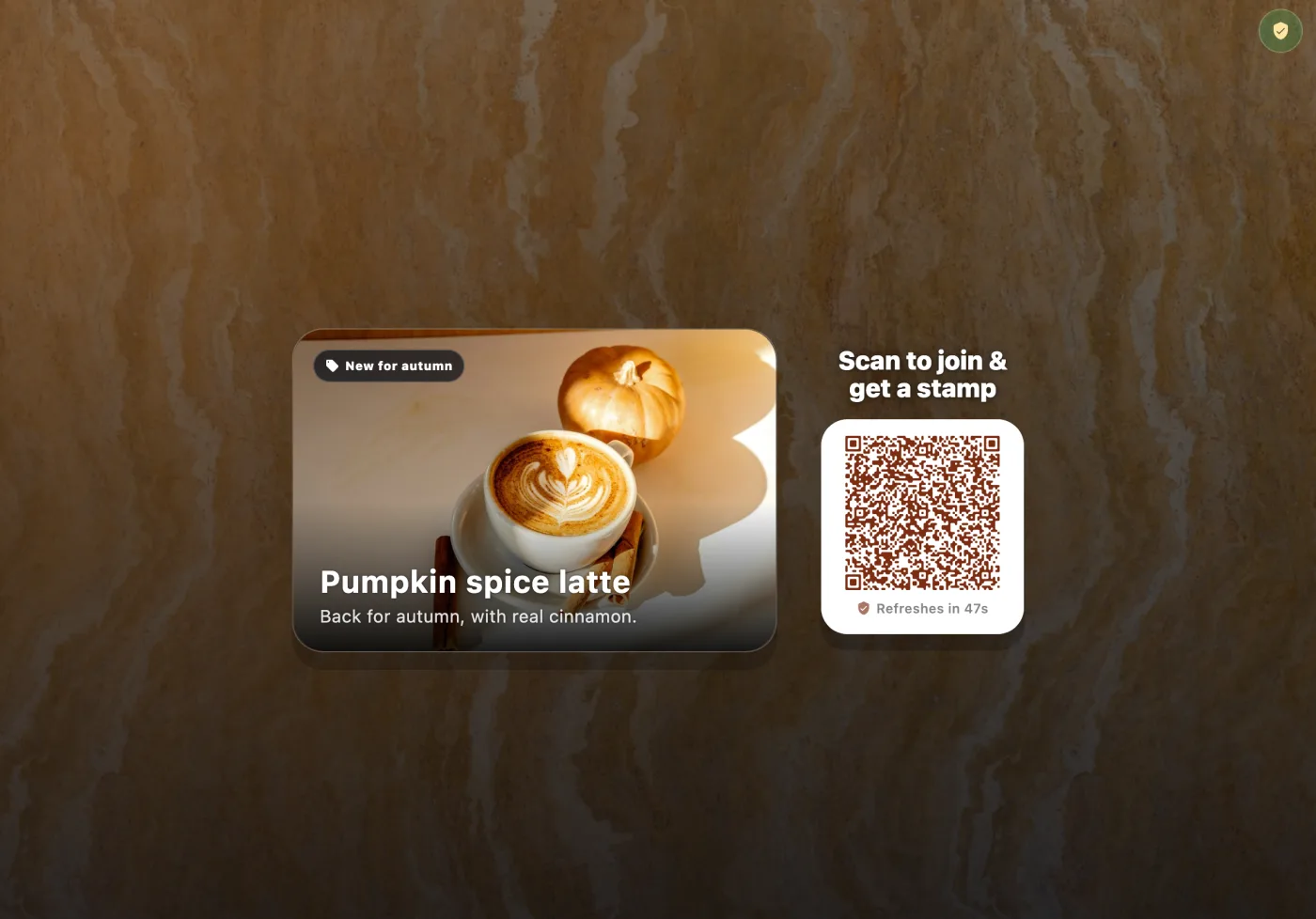
What customers see. The screen shows your promotion next to a QR code with the words “Scan to join & get a stamp” and a countdown to the next code. A customer scans it with their phone camera, with no app to download.
- New customers enter their email, confirm it with a 4-digit code, add their first name, get their card and collect their first stamp.
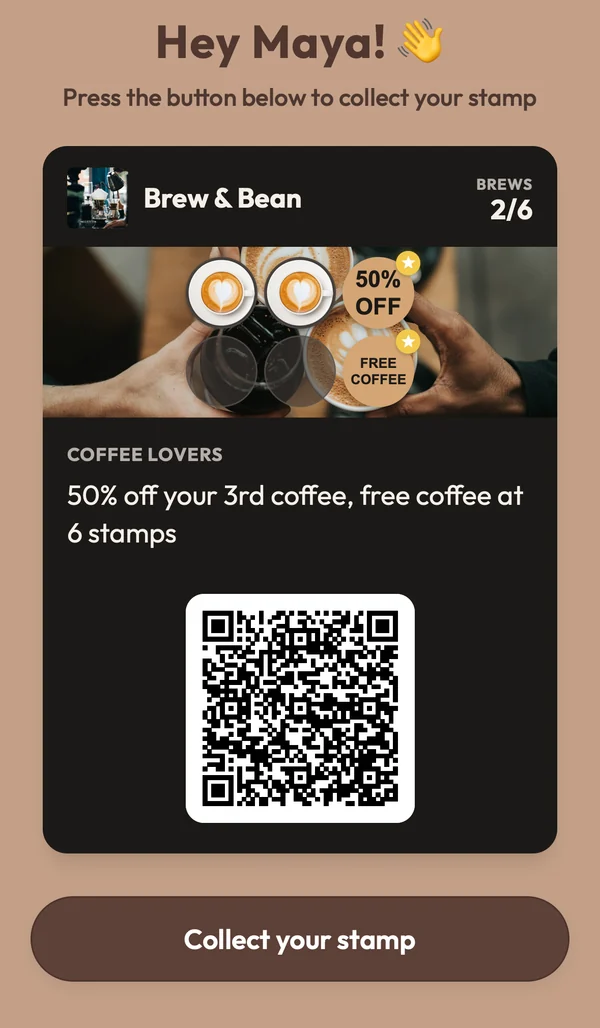
- Returning customers see their card and tap “Collect your stamp”.
- The kiosk confirms it. It shows “Stamp collected!” and plays a short chime, so staff can hear it happen without looking.
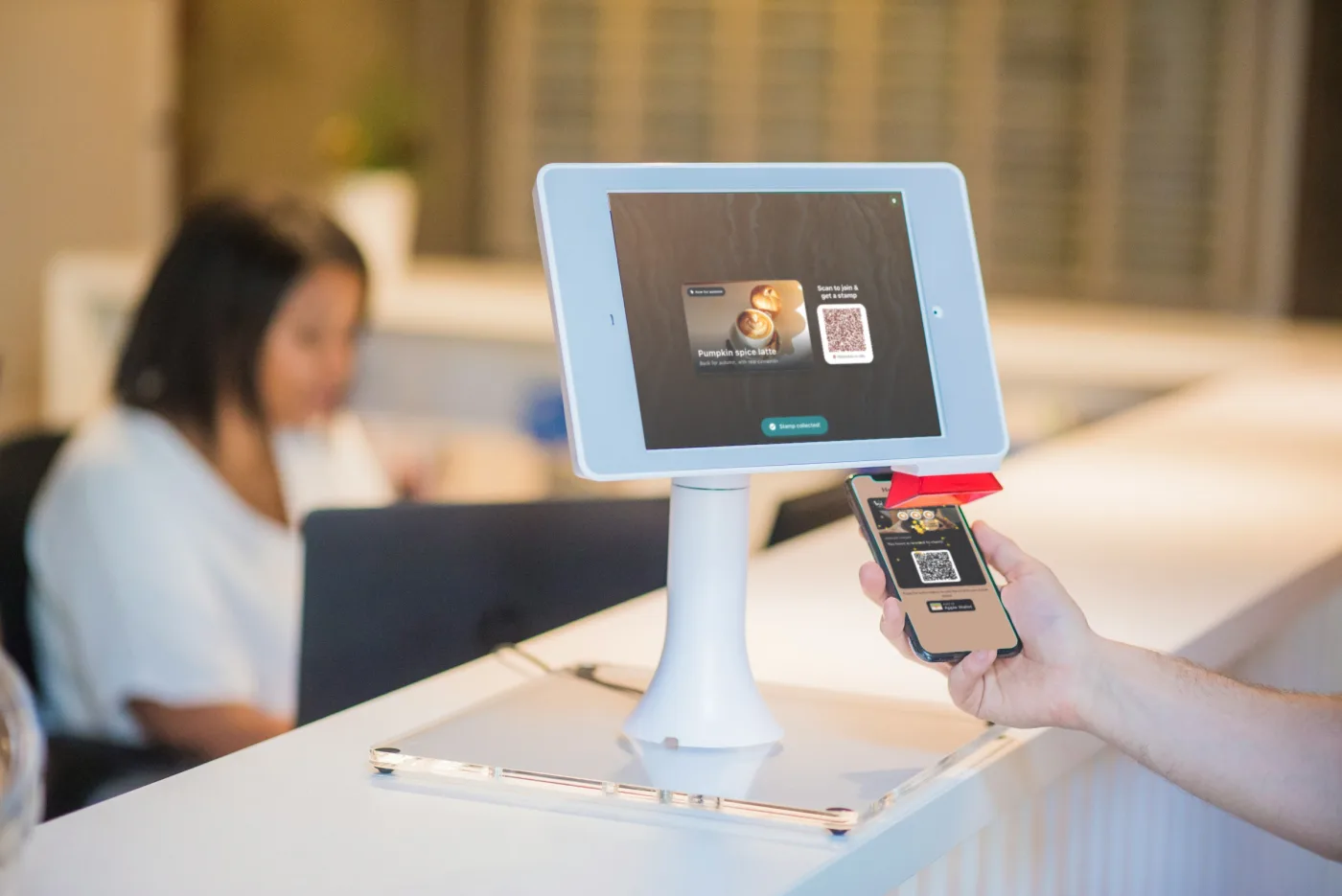
Illustration: real FaveCard kiosk and customer screens placed in a stock photo.
How it stays honest. It uses all three layers from the section above:
- Each QR code is single-use and expires within two minutes, and the kiosk shows a fresh one about every minute and straight after each scan.
- Each customer can collect 2 stamps a day by default, and you can set anything from 1 to 5.
- There is a 15-minute cooldown between stamps.
- Stamps your staff add by hand aren’t limited.
What it shows between scans. You can add a promotion with a headline, up to five photos that rotate, and a badge such as “New for autumn”. The background can be one of the built-in designs or a photo of your own.
It needs the internet. If the Wi-Fi drops, the kiosk shows an “Internet required” message and recovers by itself when the connection is back.
Phones work too. On a narrow counter or a food truck window, a spare phone on a small stand runs the same kiosk.
Which plan. Kiosk mode is part of the FaveCard Business plan and is included in the free trial, which lasts until your first 30 customers. See pricing for the details, or read more about kiosk mode.
Keep going
A kiosk handles the sign-up; the rest of the counter still has to tell people it’s there. A small sign next to the tablet helps (“Scan here, get a stamp”), and our QR code signs page shows how to print one from your card. For everything else about the first weeks of a loyalty program, see how to promote a loyalty program.
Frequently Asked Questions
Does the iPad have a kiosk mode?
Yes. Apple calls it Guided Access. It is built into every iPad, costs nothing and locks the tablet to a single app. Turn it on in Settings, then Accessibility, then Guided Access, set a passcode, open the app you want and triple-click the top button to start a session.
How do I lock an iPad to one app?
Use Guided Access. Open the app, triple-click the top button (or the Home button on older iPads) and tap Start. The iPad stays in that app until someone triple-clicks again and enters your Guided Access passcode, Face ID or Touch ID.
Is there a kiosk mode on Android tablets?
Most Android phones and tablets have app pinning. Turn it on in Settings (usually under Security, then Advanced or More security settings, then App pinning), switch on the option to ask for your PIN before unpinning, then pin the app from the Overview screen. The exact menu names vary by manufacturer.
Can I use an old phone instead of a tablet?
Yes, if the kiosk app supports phones. A tablet is easier to see from across the counter, but a spare phone on a small stand works for a narrow counter or a food truck window. The same locking steps apply.
Does a loyalty kiosk need Wi-Fi?
Yes. Each stamp has to reach the customer's card, so the tablet needs an internet connection. Put it on your shop's Wi-Fi and keep it plugged in. FaveCard's kiosk shows an Internet required message if the connection drops and carries on by itself when it comes back.
Can customers cheat a self-service loyalty kiosk?
A good one makes it hard. Look for a QR code that changes every minute or so and works only once, a limit on stamps per customer per day, and a cooldown between stamps. FaveCard's kiosk uses all three: single-use codes that expire within two minutes, a daily cap you set, and a 15-minute cooldown.


